

We have completely redesigned our customer portal for you. If the steps described in the guide differ from what you see, you will find a PDF version of the old guide at the end of this article.
How can I order a block of phone numbers?
Number blocks are an important aspect of business telephony and are therefore only available with the appropriate plans.

Side note: What is a number block?
A number block consists of a main number and a specified number of extensions. A block with ten extensions (0–9) is called a 10-number block, a block with 100 extensions (00–99) is called a 100-number block, and so on. The extensions are always appended to the end of the main number.
Benefits of Number Blocks
This allows companies to provide consistent, easy-to-remember phone numbers for all hotlines and employees. In addition, when used with a telephone system, blocks of phone numbers enable useful features such as call groups, call transfer, and speed dial.
The technical advantage is that access data does not need to be entered for every single phone number in the telephone system. Instead, the system registers only the main number and handles the routing of extensions (known as routing or SIP-DDI).
How to order a block of phone numbers
1. Open Phone Settings
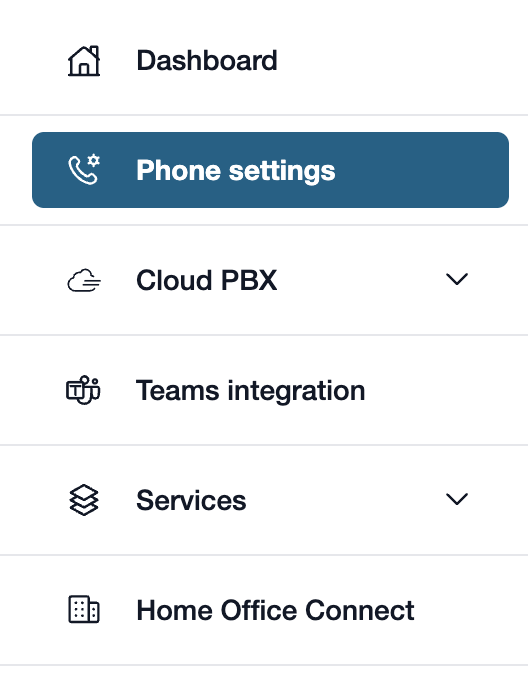
First, please go to my.easybell.
There, please click on “Phone Settings” in the left-hand menu bar.
Alternatively, you can also click on “Manage Phone Numbers” directly in the my.easybell dashboard.
2. Dial phone numbers
Do you have a private customer plan? If so, please click on “Private”!
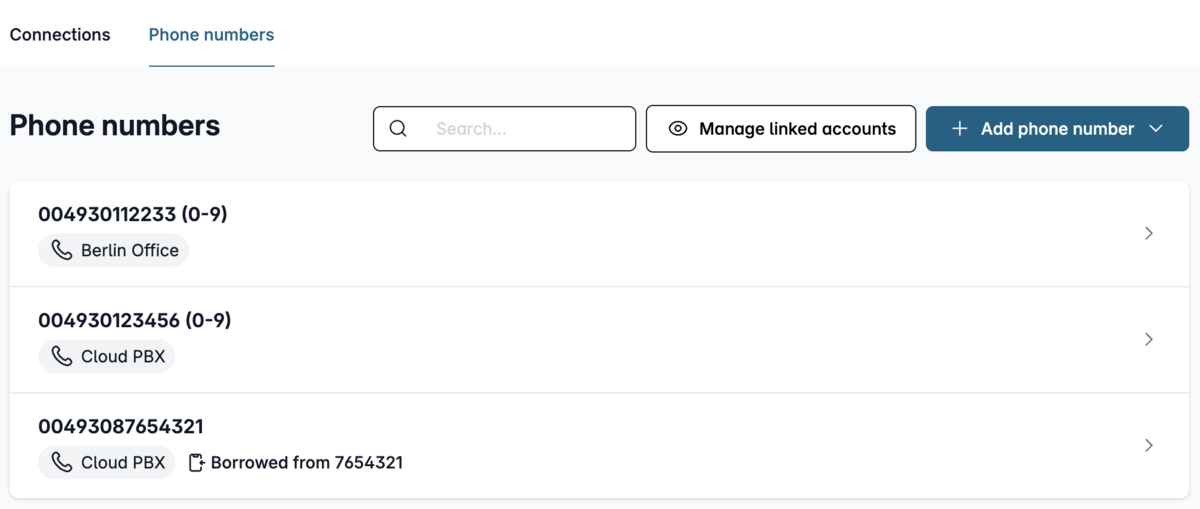
The phone settings for businesses are divided into two tabs: Connections and Phone Numbers.
Please switch to the “Phone Numbers” tab.
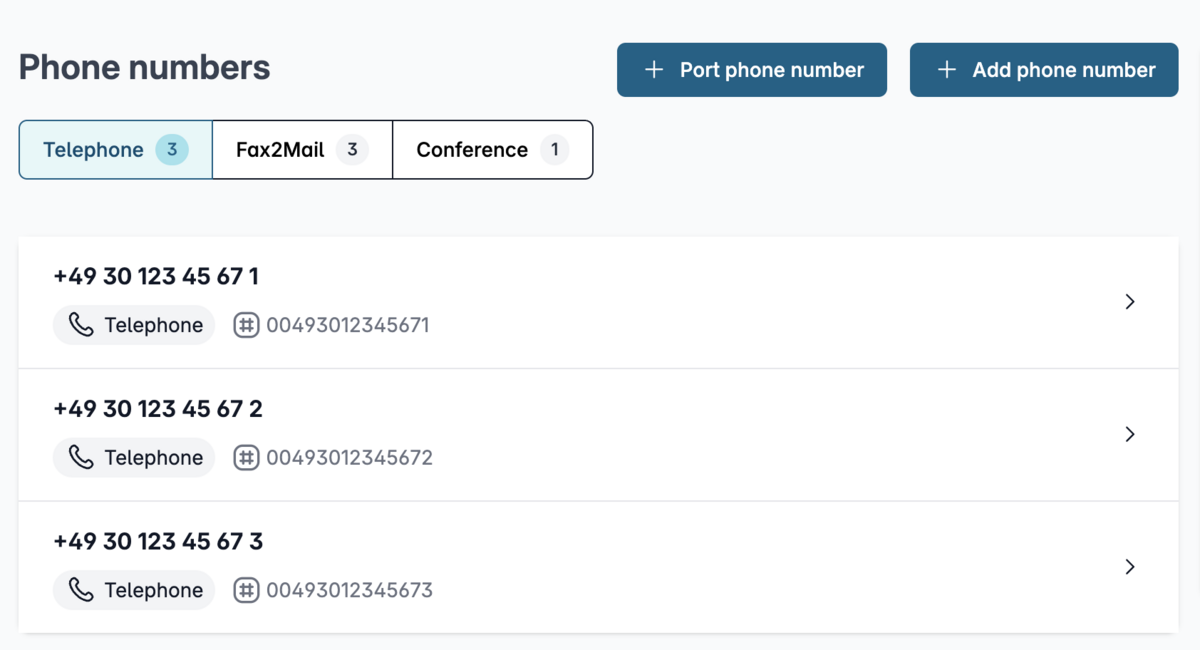
You can view an overview of your telephone numbers.
Here you can configure individual numbers, as well as order or port numbers.
3. Add a phone number
At the top right, you'll see the "Add Phone Number" button; please click it.
4. Select a range of phone numbers
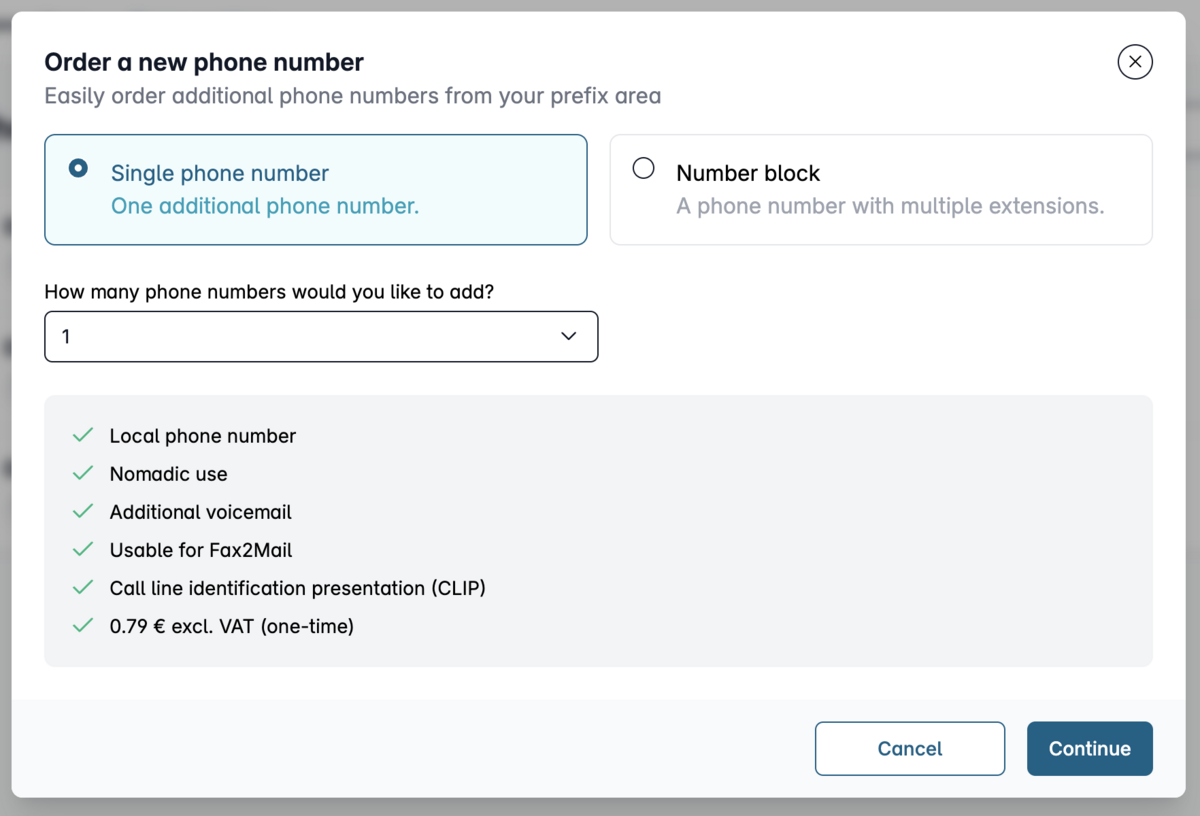
If you choose a "number block," the next step is to select "Order a new phone number" and then switch to "Number block."
Next, please specify how many extensions your number block should have and confirm by clicking “Continue.”
Now confirm your order by clicking “Buy.”
Note: Blocks of 100 numbers are available starting with the Business 10 plan, and blocks of 1,000 numbers are available starting with the Business 50 plan. You can find the prices in our price list for businesses.
5. Wait for deployment
A new block of phone numbers is typically activated within a few minutes and is then fully available for use. Due to a shortage of phone numbers in some areas, the activation of blocks of 1000 numbers can only take place after a case-by-case review. This may take up to three business days.
As soon as your number block has been provisioned, we will send you a notification via email.
6. Use phone numbers

Once the number block has been provisioned, it will appear in the phone settings in my.easybell. Depending on which phone solution you want to use the phone numbers with, you may need to adjust the assigned connection. To do this, go to the number block and select your desired connection under “Assigned Connection.”
With easybell, you can also use a number block without a phone system by creatingvirtual DDI extensions. You can then use the SIP access credentials generated this way in your IP phones. Please note, however, that features such as call groups, call waiting, and speed dialing always require an on-premises or virtual phone system, such as the Cloud PBX.