

We have completely redesigned our customer portal for you. If the steps described in the guide differ from what you see, you will find a PDF version of the old guide at the end of this article.
Set up call forwarding
If you want to forward calls to another phone number, you have several options.
- You should set up any call forwarding you intend to use permanently in the customer portal. Examples include your voice mail or fallbackrouting.
- Alternatively, you can also set up call forwarding directly on the device itself (SIP code 302). This is useful when you’re away from your desk unexpectedly, or if you’re configuring a phone system that handles the forwarding. You can find more information in the documentation for your device.
1. Open Phone settings
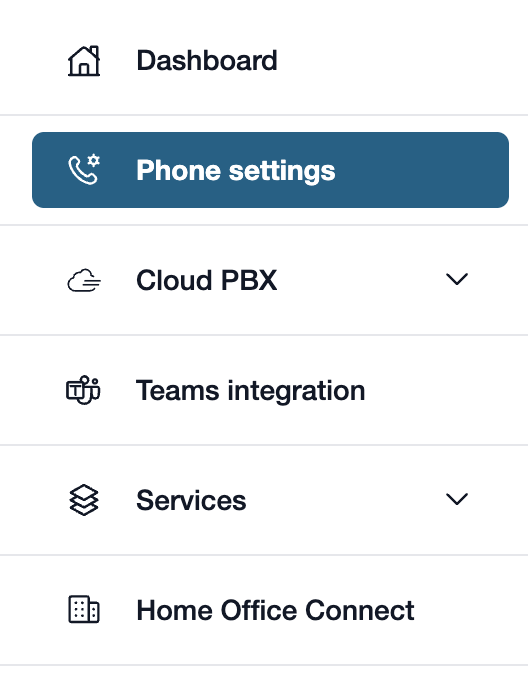
First, please go to my.easybell.
There, please click on “Phone Settings” in the left-hand menu bar.
Alternatively, you can also click on “Manage Phone Numbers” directly in the my.easybell dashboard.
2. Open the connection
Do you have a private customer plan? If so, please click on “Private”!
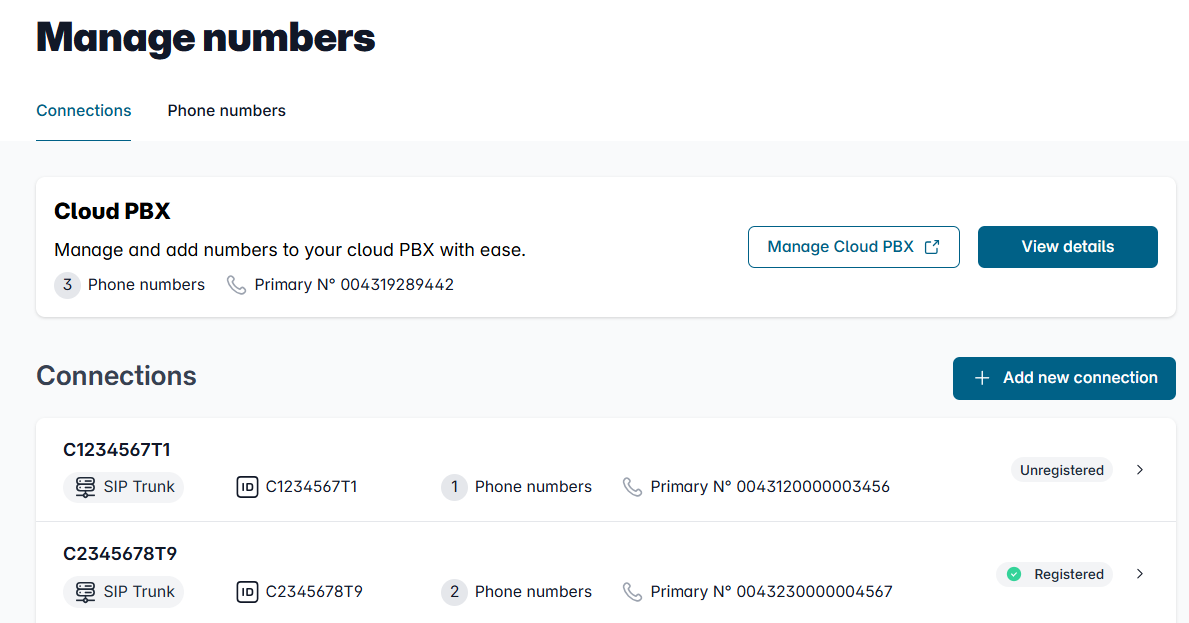
The phone settings for businesses are divided into two tabs: Connections and Phone Numbers.
In the Connection Overview, please click on the connection whose details you wish to view.
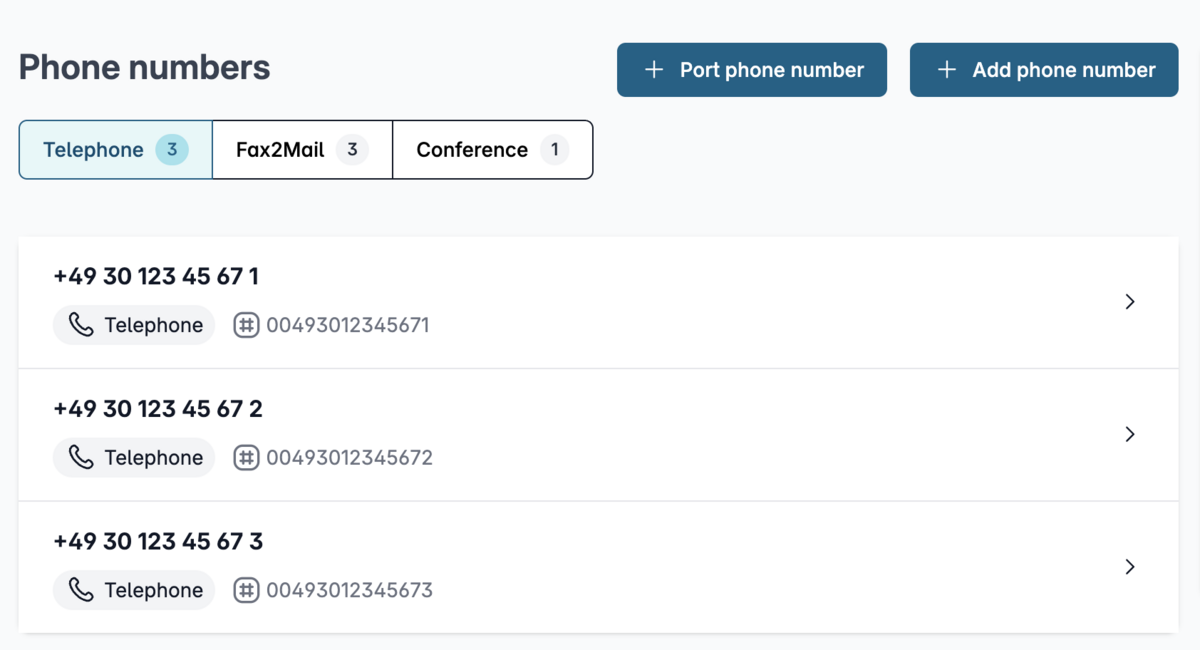
You will see an overview of your telephone numbers.
Please click on the one whose details you wish to view.
3. Change configuration

In the details view, you will see an overview of the settings.
Please scroll to the "Configuration" section and click the "Change" button to the right of it.
4. Set up call forwarding based on device status
Look for the "Call Forwarding & Parallel Ringing" section here.
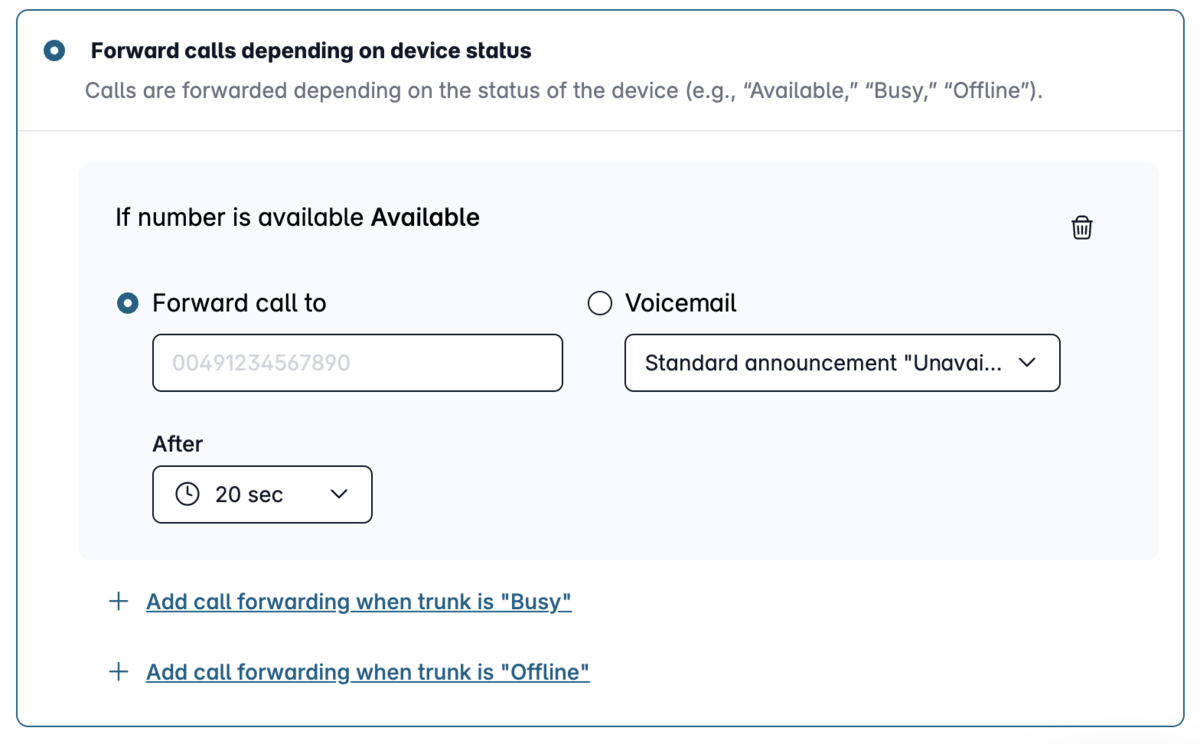
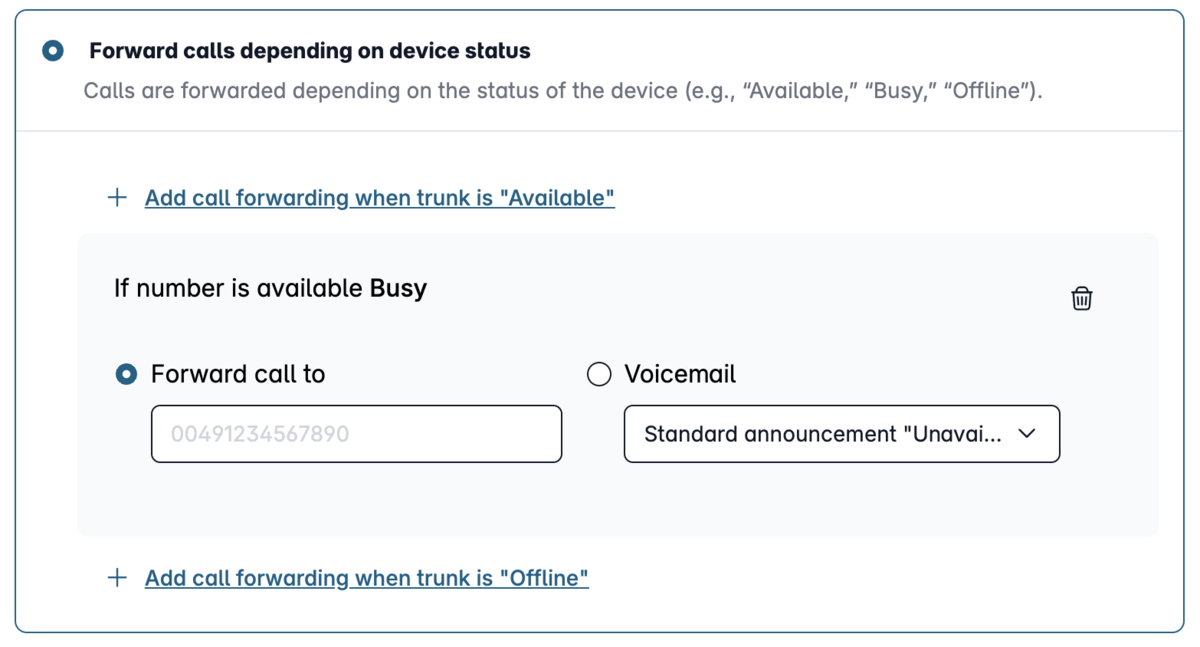
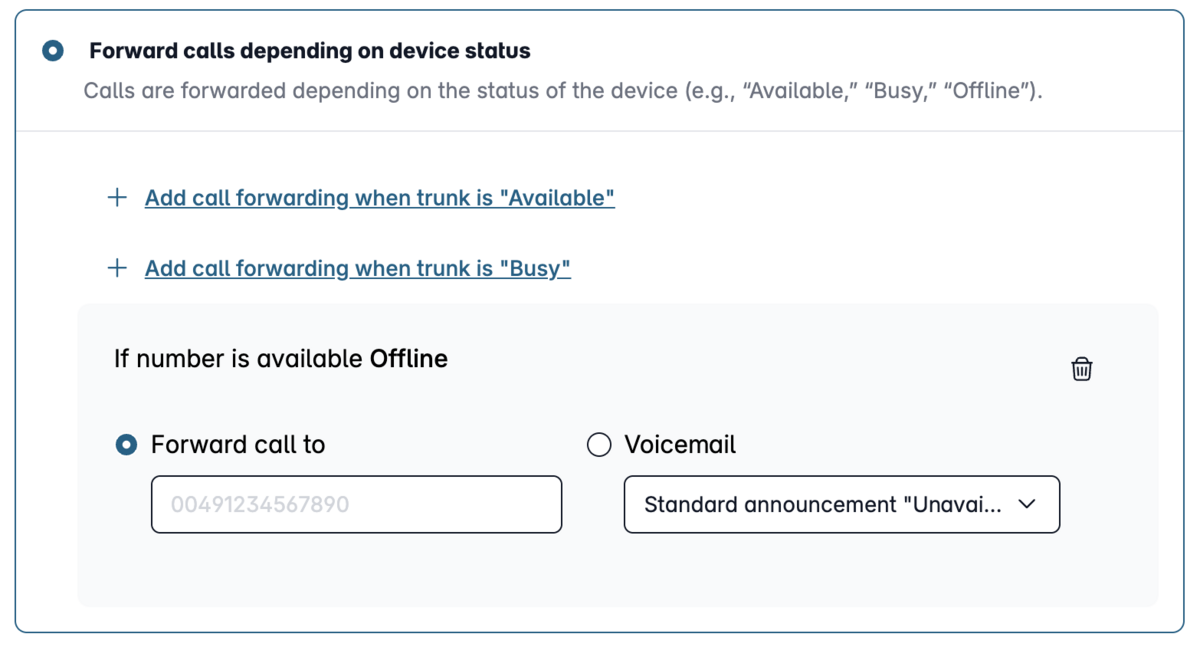
Specify the circumstances under which you want call forwarding to occur. After you select a call forwarding option, an input field will appear next to the option. Enter the phone number to which calls should be forwarded (see screenshots).
Status: Available
(Phone connected to the internet)
Here, you can also choose how long it takes for call forwarding to activate.
Status: Employed
(Phone connected to the internet)
The call is forwarded directly here.
Status: Offline
(Phone not connected to the internet)
In this case, the call is forwarded directly.
Note: This mode cannot be used in combination with the Easybell app, as the push server used by the app remains online even when the device is not connected to the internet.
5. Save settings
Click "Save" to confirm.
Your call forwarding has been successfully activated.
Note: When call forwarding is enabled, the caller’s phone number is always transmitted to the forwarding destination, even if you have disabled caller ID display.
More options
In addition to call forwarding based on your phone status, other options are available to you:
Forward all calls immediately and unconditionally
Whether the line is free, busy, or offline, all calls to this phone number are forwarded to a phone number you specify.
parallel ringing
A call is not only signaled to devices where this phone number is configured, but also to up to two additional phone numbers. Learn more in our article “Set up parallel ringing.”
Forwarding via the device
If your device supports the “Call Deflection” feature, you can also set up call forwarding directly on your device, such as in your phone system. Calls are then redirected to the new destination using the SIP code 302.
Delete call forwarding
You can turn off call forwarding by selecting "Do not forward calls" in the call forwarding settings.
Then click "Save."