

Borrow phone numbers and blocks of phone numbers from another Easybell account
Borrow a phone number
1. Open telephone line settings
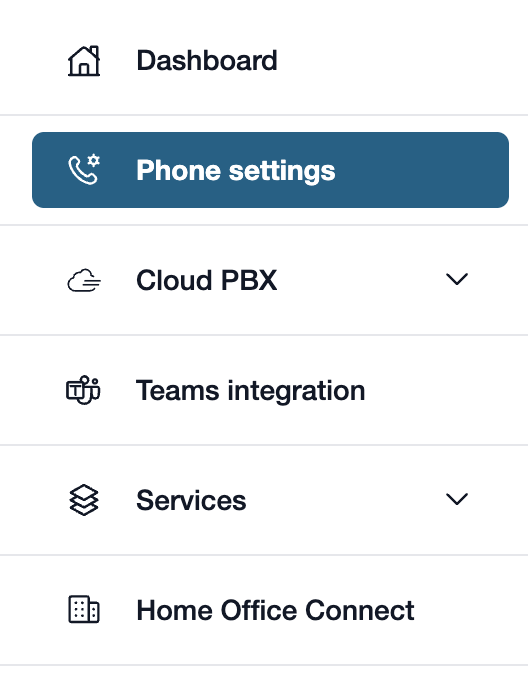
First, please go to my.easybell.
There, please click on “Telephone line” in the left-hand menu bar.
Alternatively, you can also click on “Manage Phone Numbers” directly in the my.easybell dashboard.
2. Dial phone numbers
Do you have a private customer plan? If so, please click on “Private”!
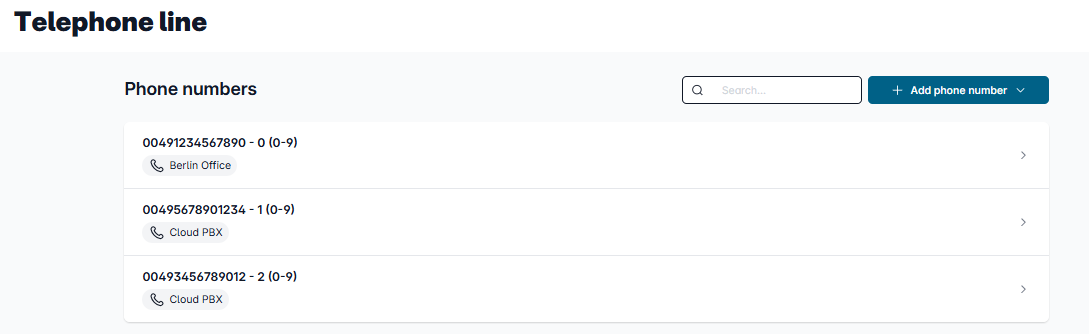
The phone settings for businesses are divided into two tabs: Connections and Phone Numbers.
Please switch to the “Phone Numbers” tab.

You can view an overview of your telephone numbers.
Here you can configure individual numbers, as well as order or port numbers.
3. Borrow a phone number
In the overview of your phone numbers, please click "Add Phone Number" in the upper right corner and then select "Borrow phone numbers from another Easybell account."
4. Link account
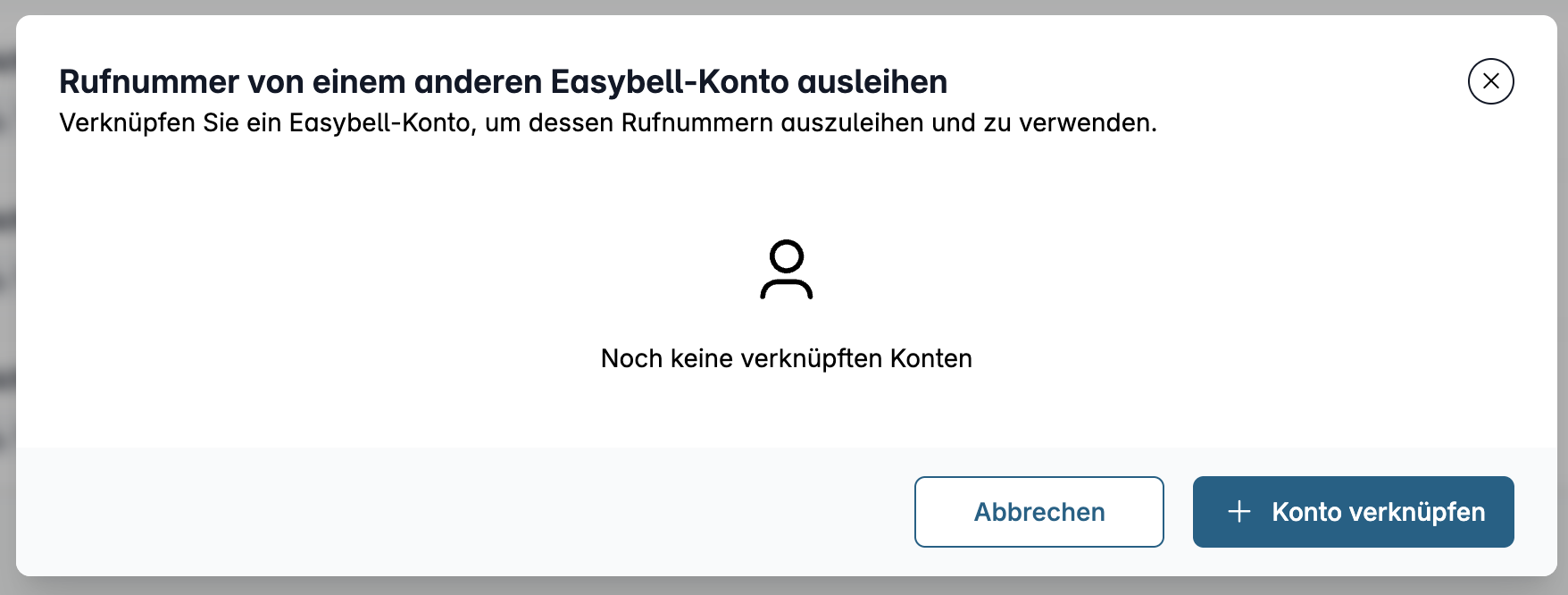
In the window that opens, you'll see a list of all accounts that are already linked. Click "Link Account" to add another Easybell account and make its phone numbers available in your own account.
4.1 Login Credentials
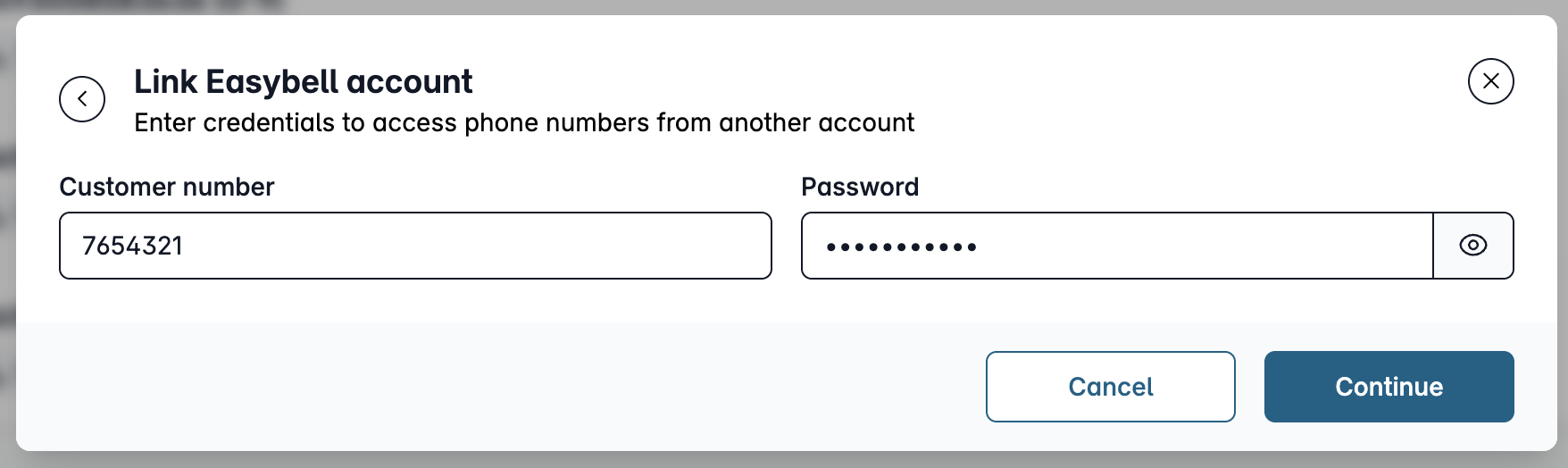
Enter the login credentials for the Easybell account from which you wish to borrow phone numbers. To do so, enter your customer number and, if necessary, the corresponding password. Click “Next” to establish the connection and proceed to the phone number selection screen. If the information is incorrect, a message will appear, and you can re-enter the details.
4.2 Select phone numbers
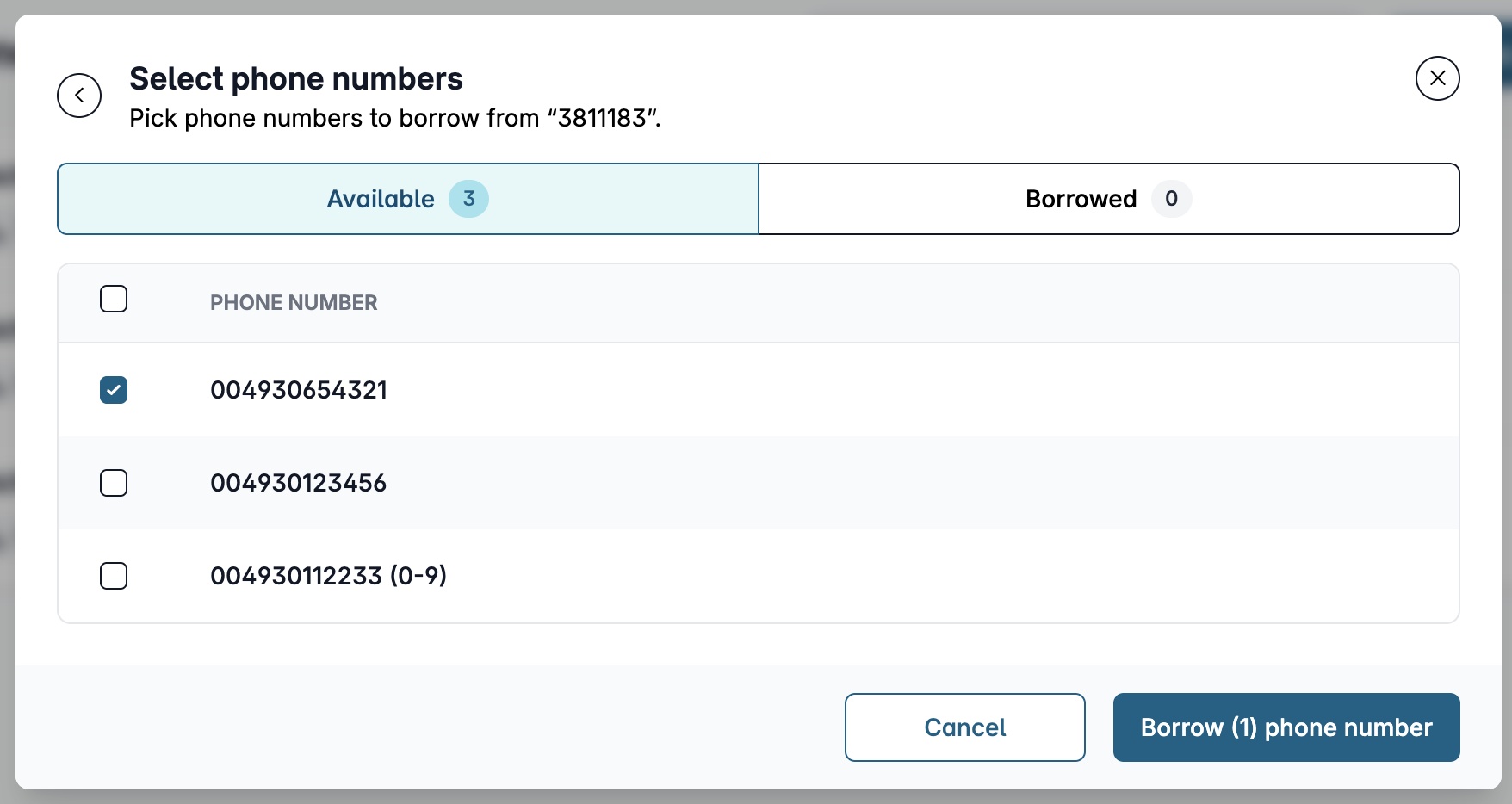
You will now see all the phone numbers associated with the linked account that are available for borrowing. Select the desired phone numbers using the checkboxes and confirm your selection by clicking “Borrow Phone Numbers.”
4.3 Assign a connection
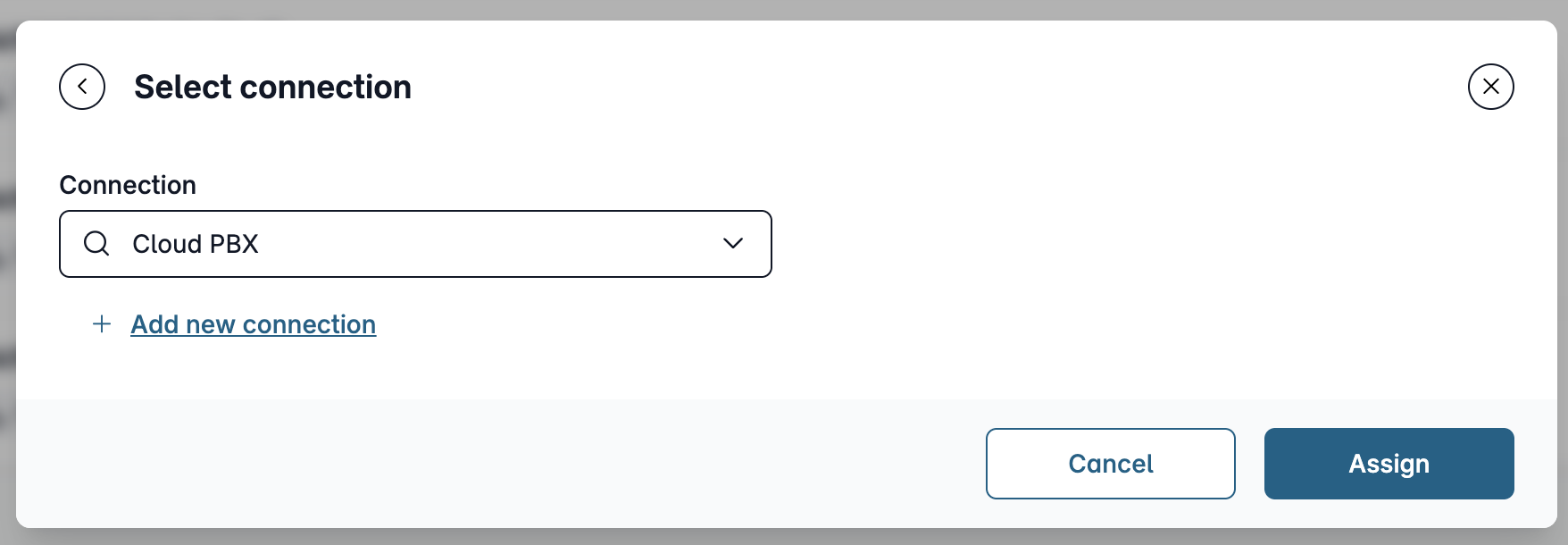
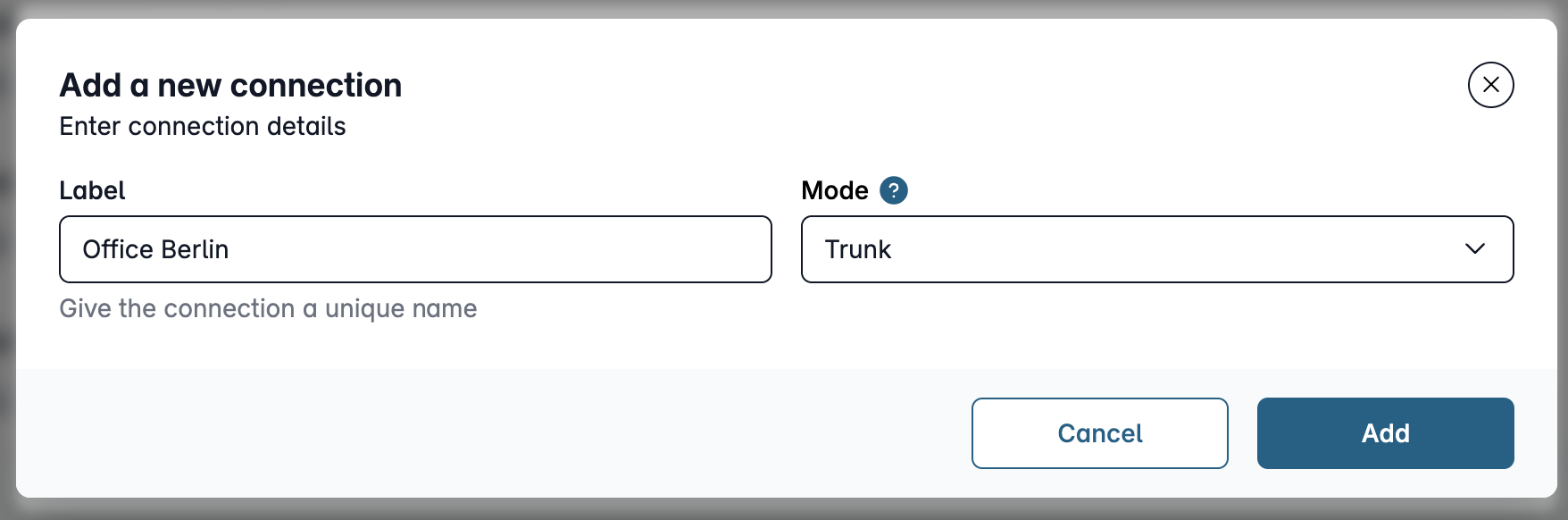
In the final step, select the connection to which the borrowed phone numbers should be assigned. If necessary, you can create an additional connection by clicking “Add New Connection.”
Confirm your selection by clicking “Assign.”
5. Check the setup
On the overview page for your phone numbers, the borrowed phone number will now appear with the note “Borrowed from …”.
6. Customize call signaling
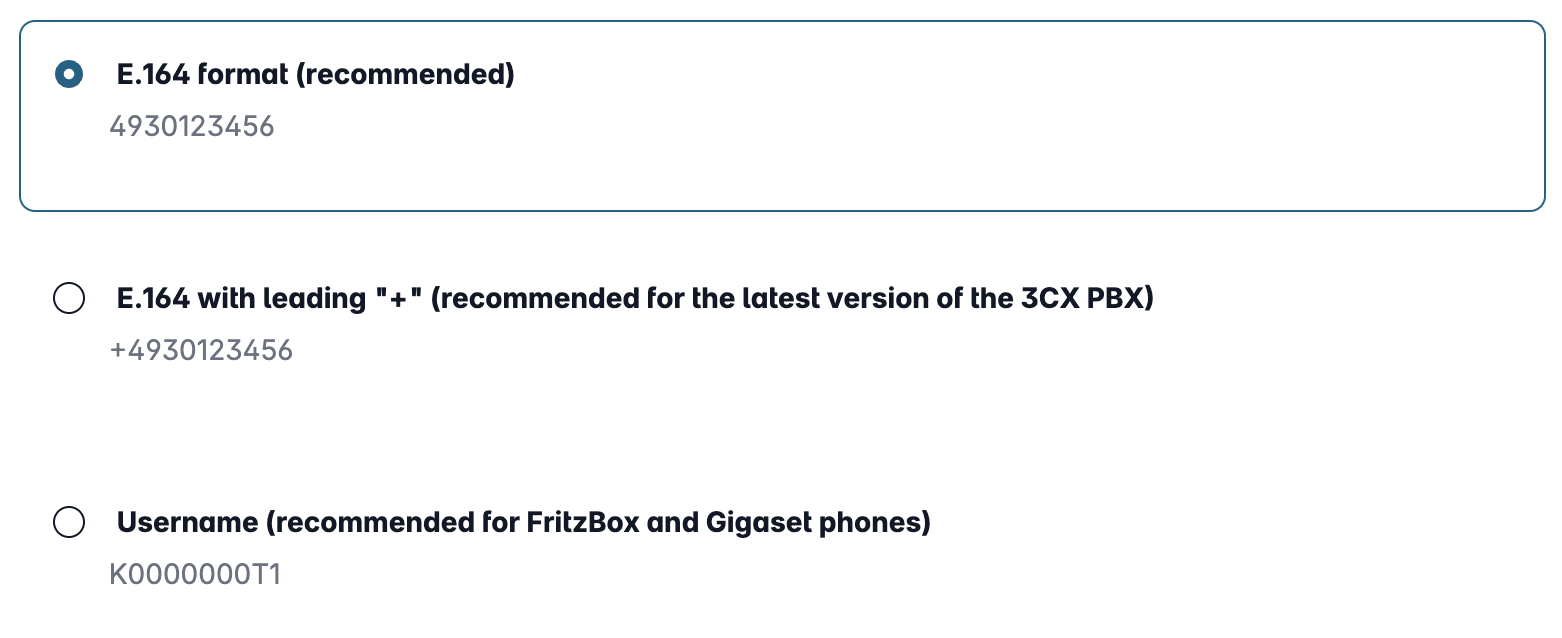
Requirement: Incoming number signaling in e.164 format.
Please check that the Incoming number signaling of the phone numbers / blocks you want to install is set up in E.164 format. The settings can be found in the customer portal under "Phone functions" → "Manage phone numbers".
For more information, see "Form of phone numbers for incoming calls?".
Return the phone number
If you wish to return the borrowed phone number at a later time, simply click "Return Phone Number" in the details view. The phone number will then no longer be in use.
We have completely redesigned our customer portal for you.
If the steps described in the instructions differ from your situation, you'll find a PDF version of the old instructions at the end of the article.