

Assign Phone Numbers to a Connection
In our business plans, the phone settings are divided into “Phone Numbers” and “Connections”:
- Phone Numbers are your connection to the telephone network—that is, the phone numbers assigned to you that customers and partners use to reach you.
- Connections refer to the connection to your business and your hardware. This separation offers the advantage that you can flexibly adjust the configuration of your connections to suit your needs at any time.
Link a phone number
1. Open the phone line settings
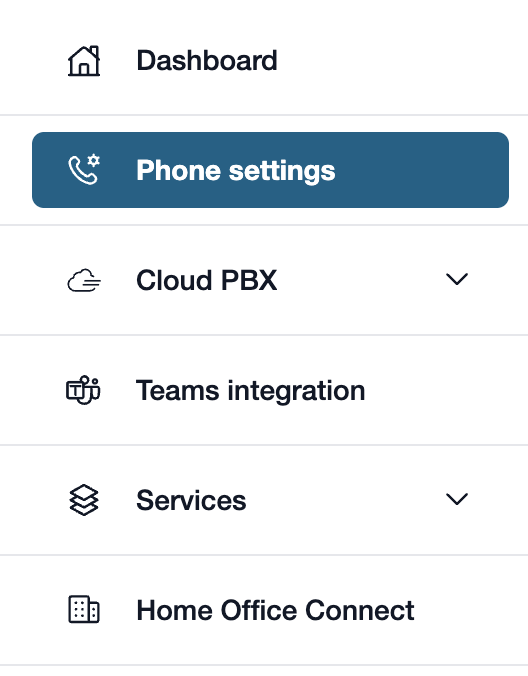
First, please go to my.easybell.
There, please click on “Telephone line” in the left-hand menu bar.
Alternatively, you can also click on “Manage Phone Numbers” directly in the my.easybell dashboard.
2. Open the connection
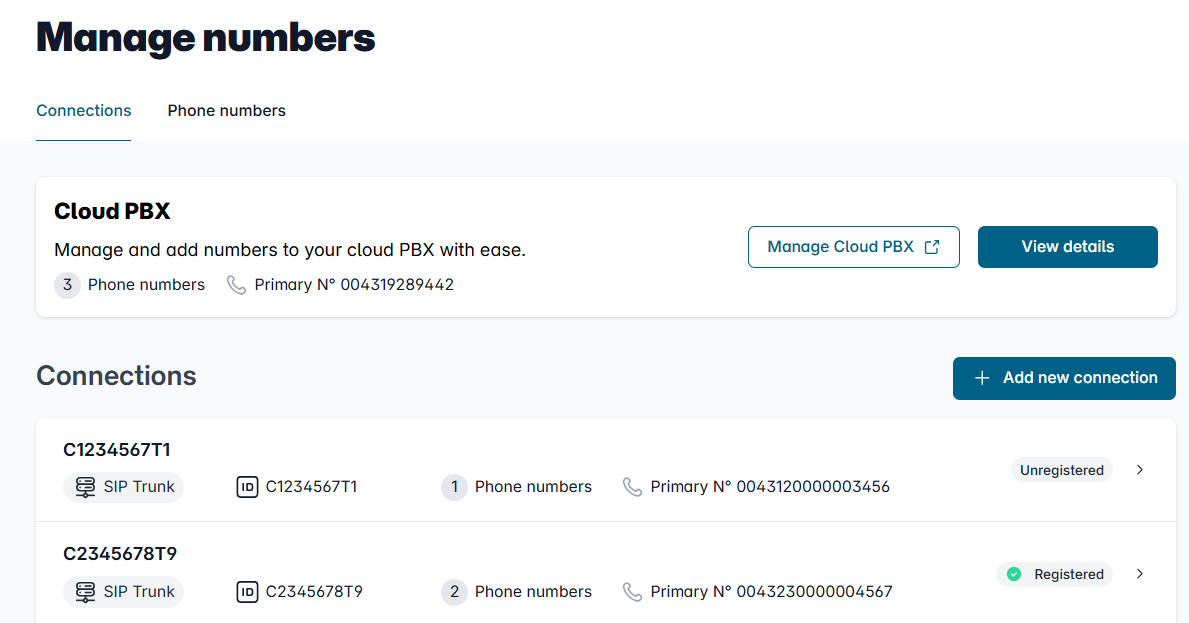
In the Overview of connections, please click on the connection whose settings you want to adjust.
3. Assigned Phone Numbers
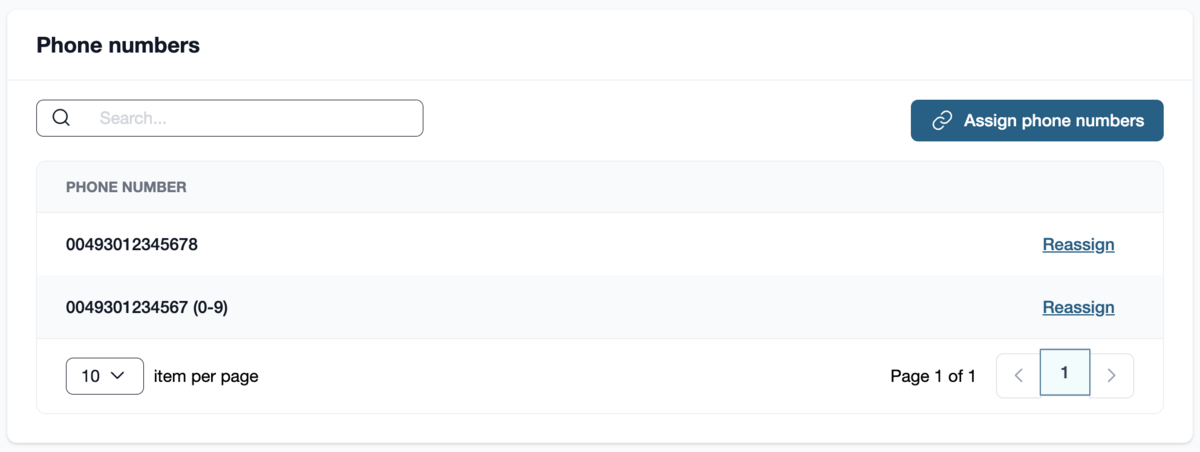
At the very bottom of your connection details, you'll find the "Phone Numbers" section.
This section lists all phone numbers that are already assigned to the connection. Using the “Assign Phone Numbers” button, you can assign a new individual phone number, a block of phone numbers, or even a single extension from the block to the connection.

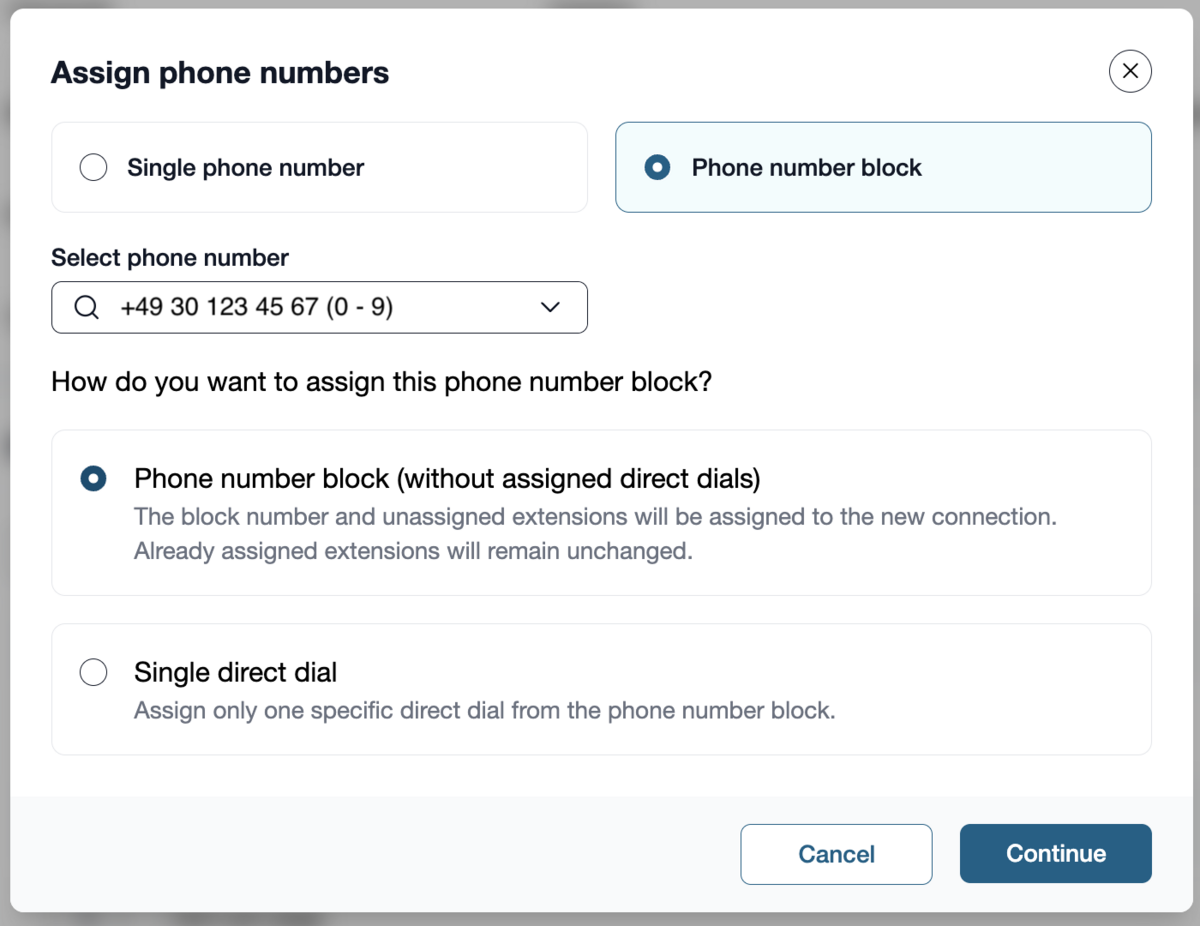
4. Assign a phone number
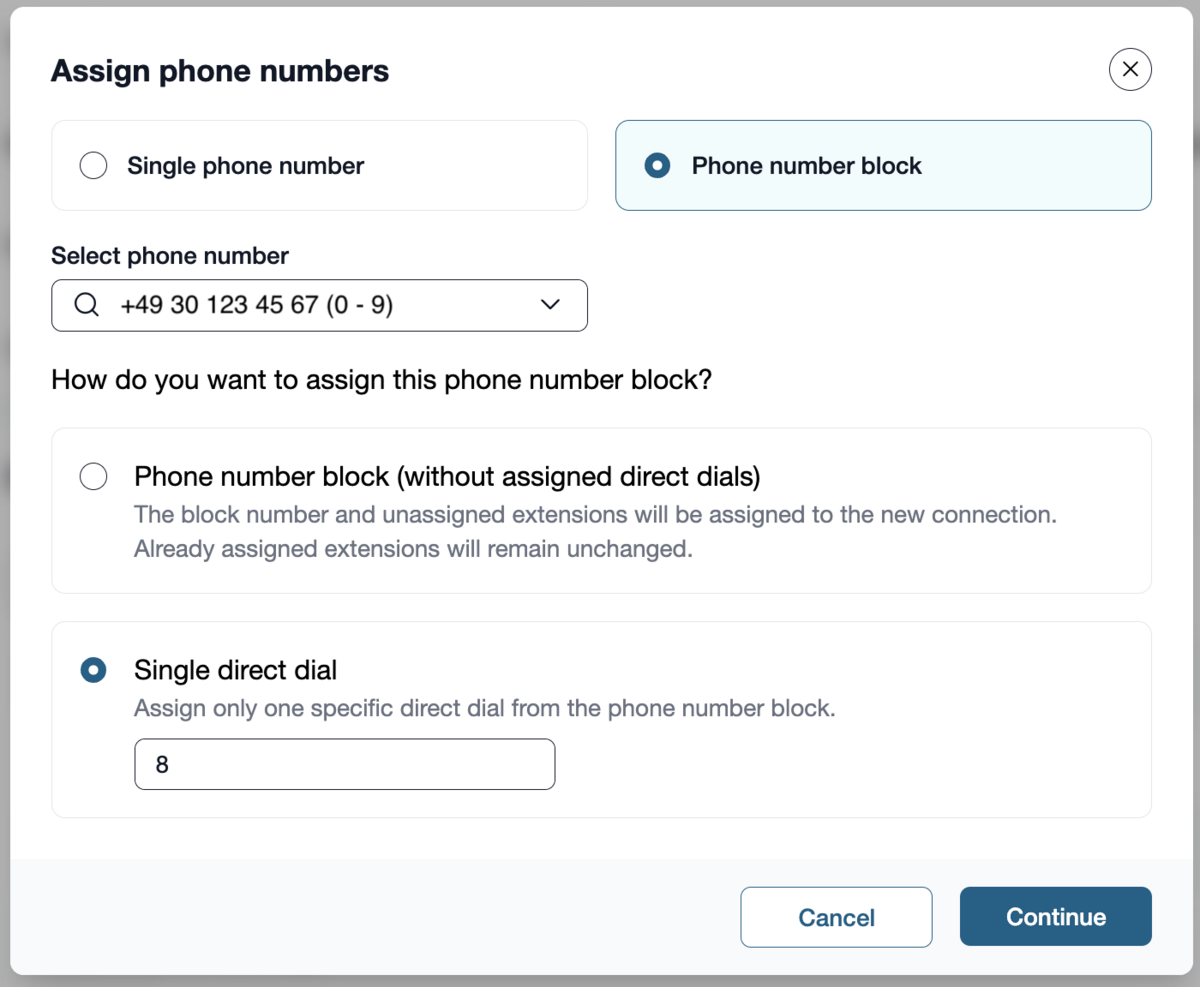
After you click “Assign Phone Numbers,” a selection window opens with two options:
- Single Phone Number: Use the drop-down menu to select one of your existing phone numbers, then confirm by clicking “Next.”
- Number Block: Select the number block you want to assign to the connection. If you want to assign only a specific extension from the block, please select “Single Extension” and enter the desired extension in the field provided.
Then confirm by clicking “Next.”
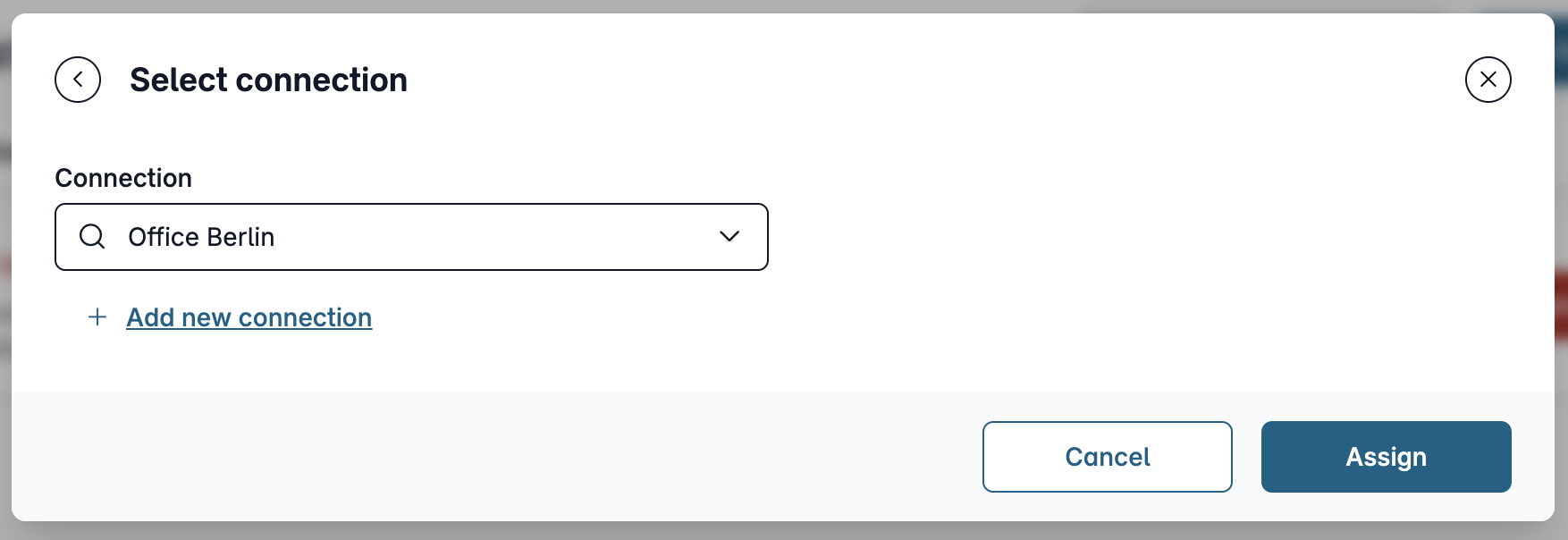
5. Select a connection
In the next step, you can change the destination connection again. To do this, select the desired connection from the drop-down menu to which the phone number should be assigned.
Alternatively, you can create a new connection by clicking “Add New Connection.” Enter an appropriate name and select the mode for the new connection.
Click “Add” to save.
6. Assign the phone number permanently
Finally, click “Assign” to assign the selected phone number, range of numbers, or individual extension to the connection.
The phone number is now assigned to the connection and appears in the list of assigned phone numbers.
Assign a phone number to another connection
A phone number must always be assigned to a connection. To use a phone number in another connection, you can simply assign it to that connection as described here.
Alternatively: Make changes via the phone number details
1. View the list of phone numbers
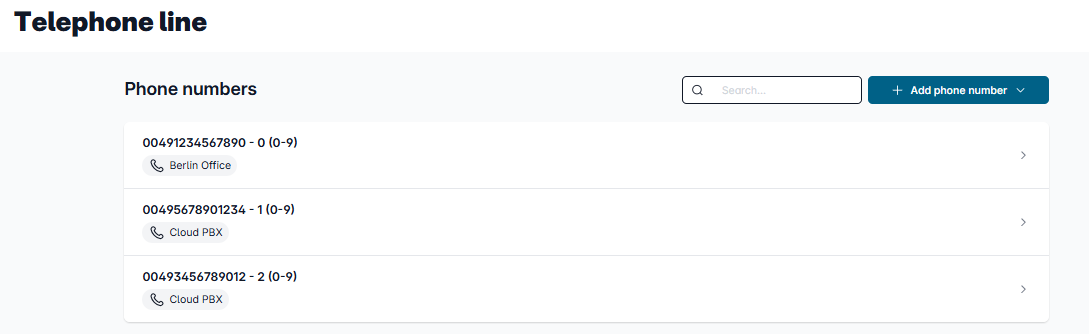
The telephone line settings for businesses are divided into two tabs: Connections and Phone Numbers.
Please switch to the "Phone Numbers" tab.
2. View Phone Number Details
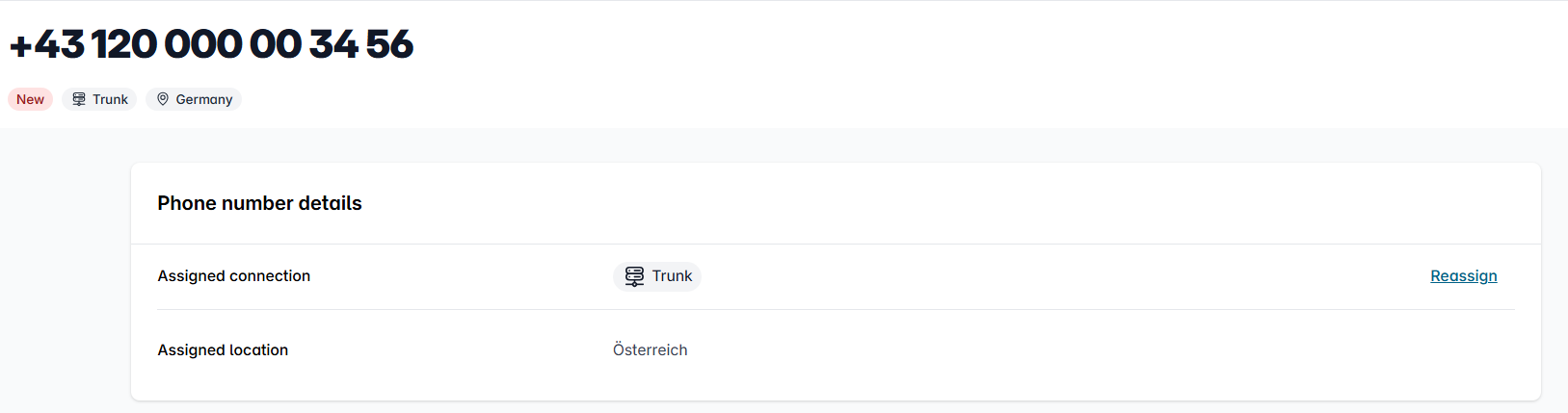
Click on the phone number you want to assign to a connection.
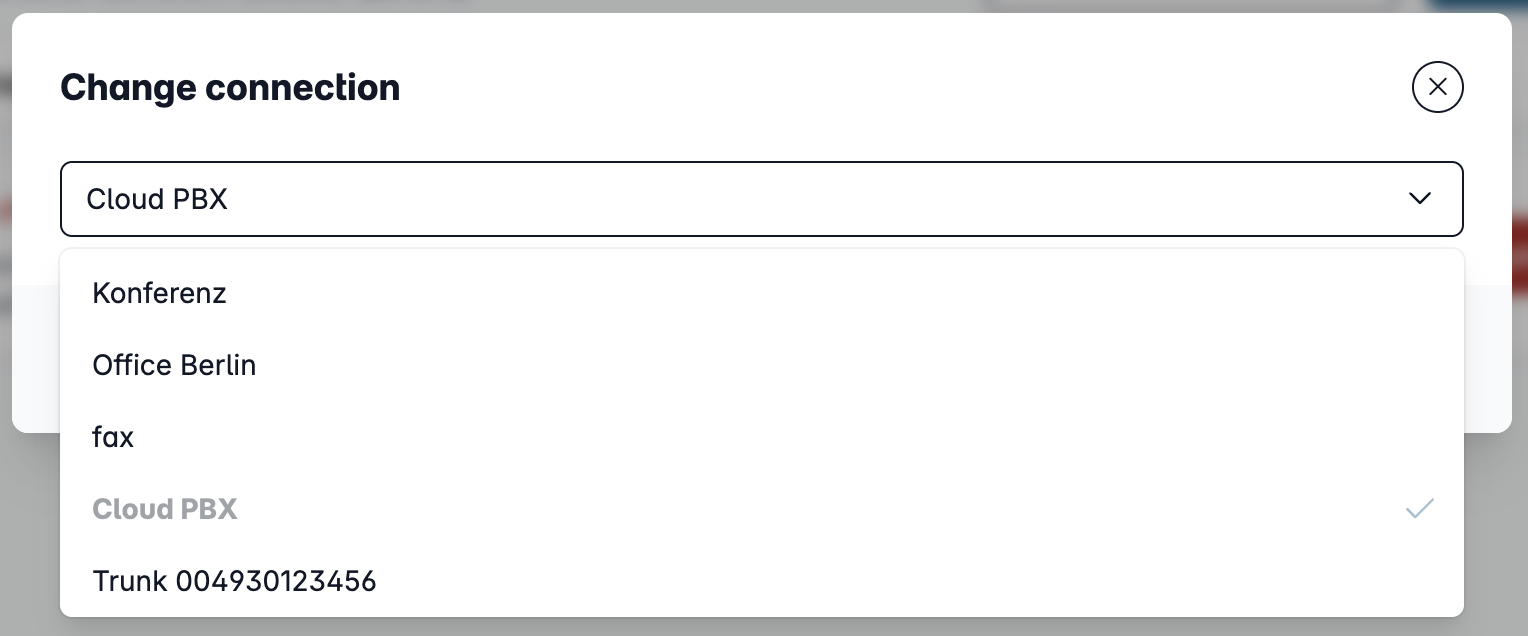
Under "Details," you can see which connection the phone number is assigned to. To change this assignment, please click "Change Connection."
3. Change Connection
After you click “Change Connection,” a window will appear with a drop-down menu from which you can select one of your existing connections.
Decide which connection you want to assign the phone number to, and click “Assign.”