

Use User Management in the Customer Portal
For data protection and security reasons, it makes sense for all companies to grant each employee access only to the systems they truly need for their work. In addition, companies should avoid having multiple people share a single account. This is because, in the event of a security breach, it is difficult to identify the person responsible, and if someone leaves the company, the password must be changed for everyone.
Especially in larger companies, there are situations where not all employees need access to every area in my.easybell. For example, the accounting and IT departments each require individual access rights for their specific areas of responsibility. The accounting department should avoid making technical settings whenever possible, and invoices are generally not relevant to the IT department. For these reasons, you should use the user management feature in my.easybell.
Instructions
1. Open User Management
Log in to my.easybell using your login credentials. If you have already created other user accounts with access to user management, you can use those as well.
Then click on “User Management” in the menu bar at the bottom left.
2. Add a user
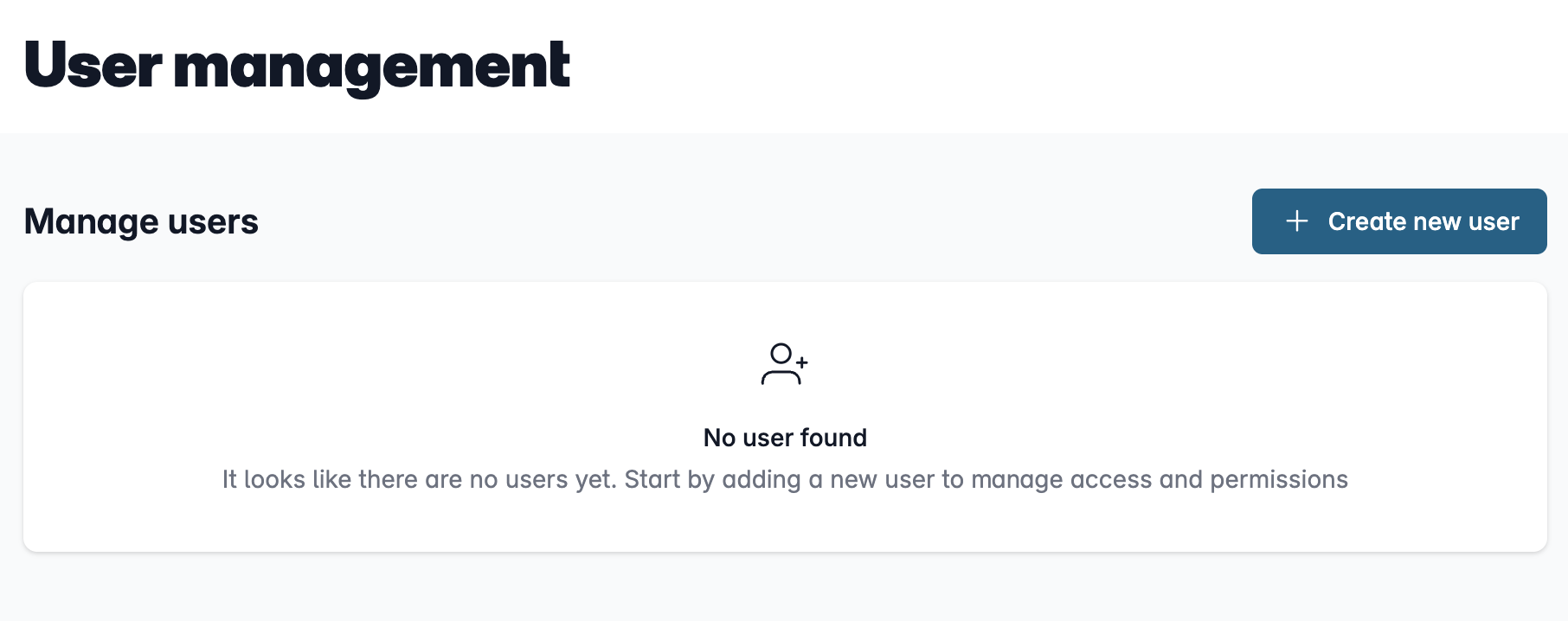
When you open User Management for the first time, the list of created accounts will be empty.
Please click the "Create New User" button in the upper right corner to continue.
3. Set up access permissions
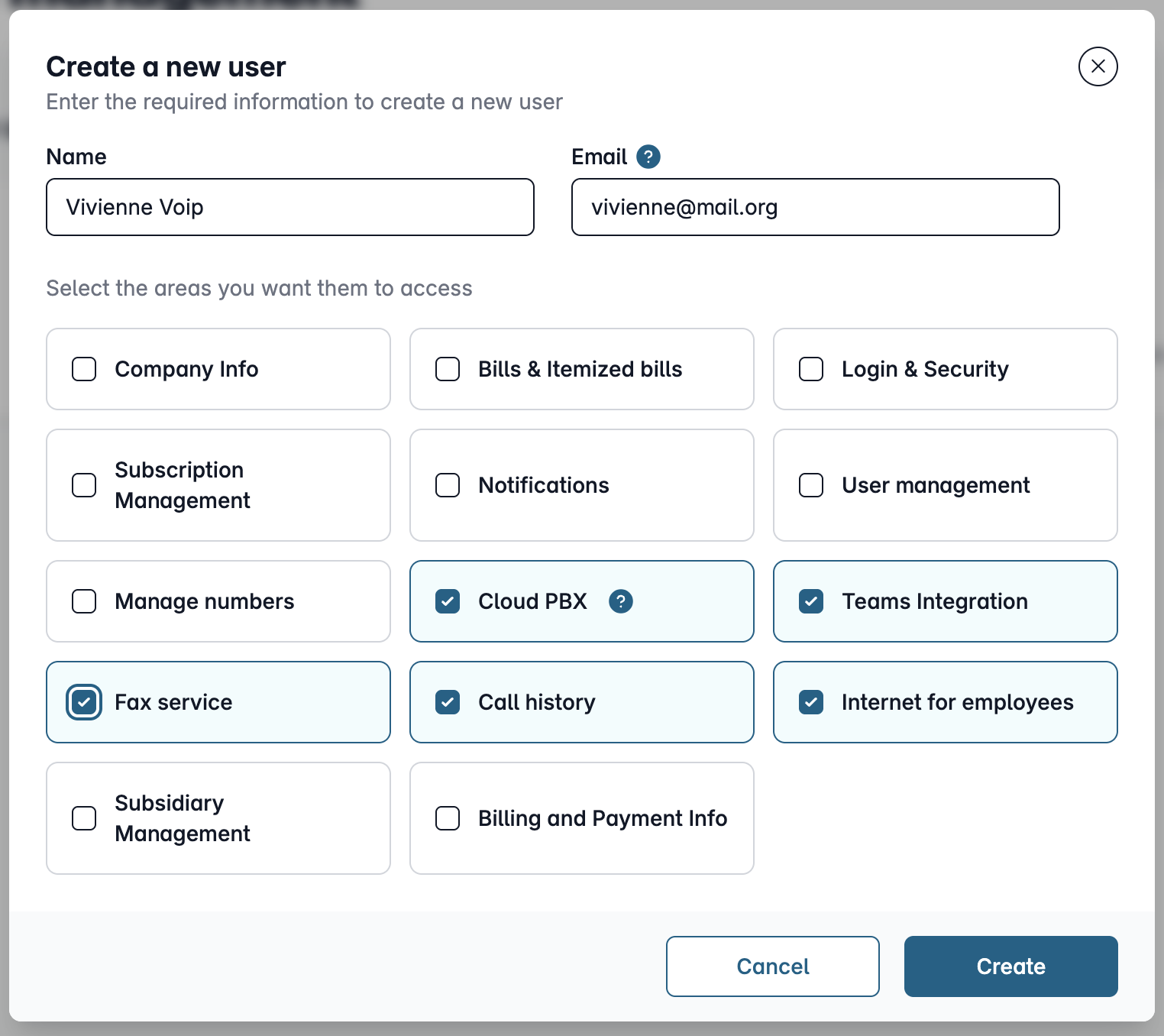
Please enter a name and email address for the new account.
Below that, you can individually enable access to the various sections of the customer portal. You can adjust these settings at any time later.
Complete the setup by clicking “Create.”
4. Activate account
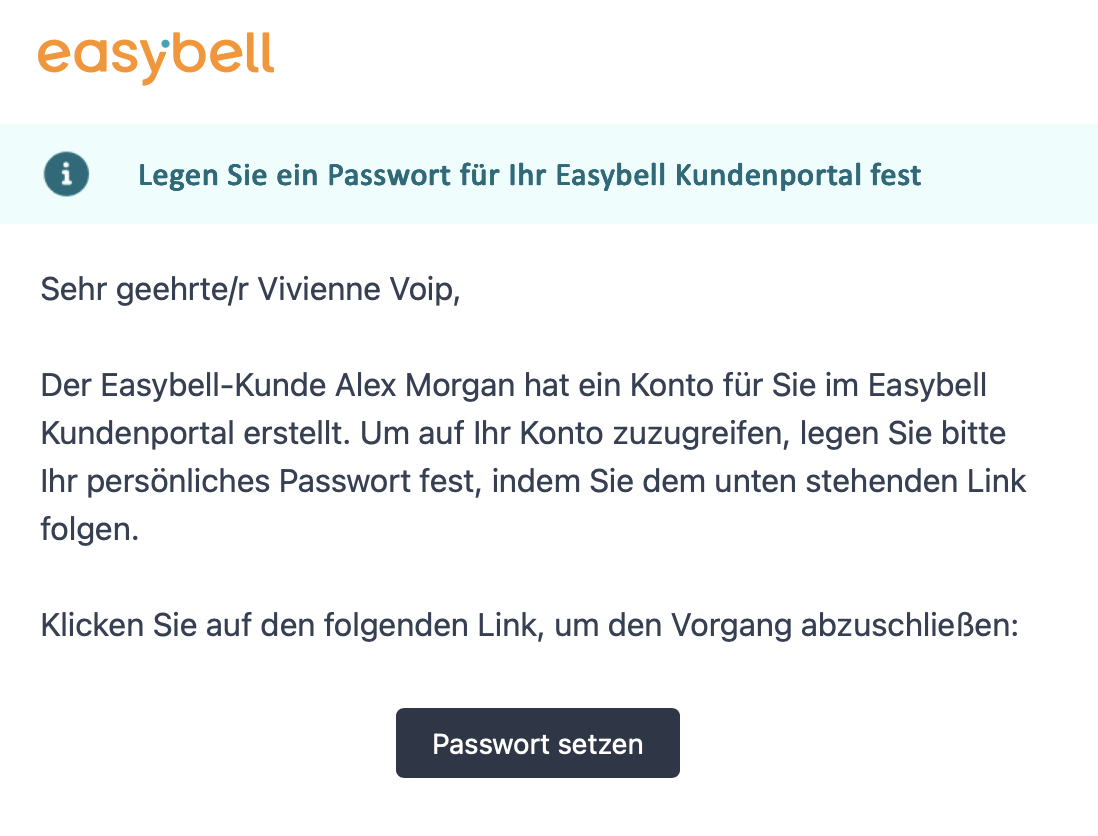
Once the account has been created, a message will be sent to the registered email address.
The link in the email leads to a page where you must set a password for this account to activate it.
5. Use your account
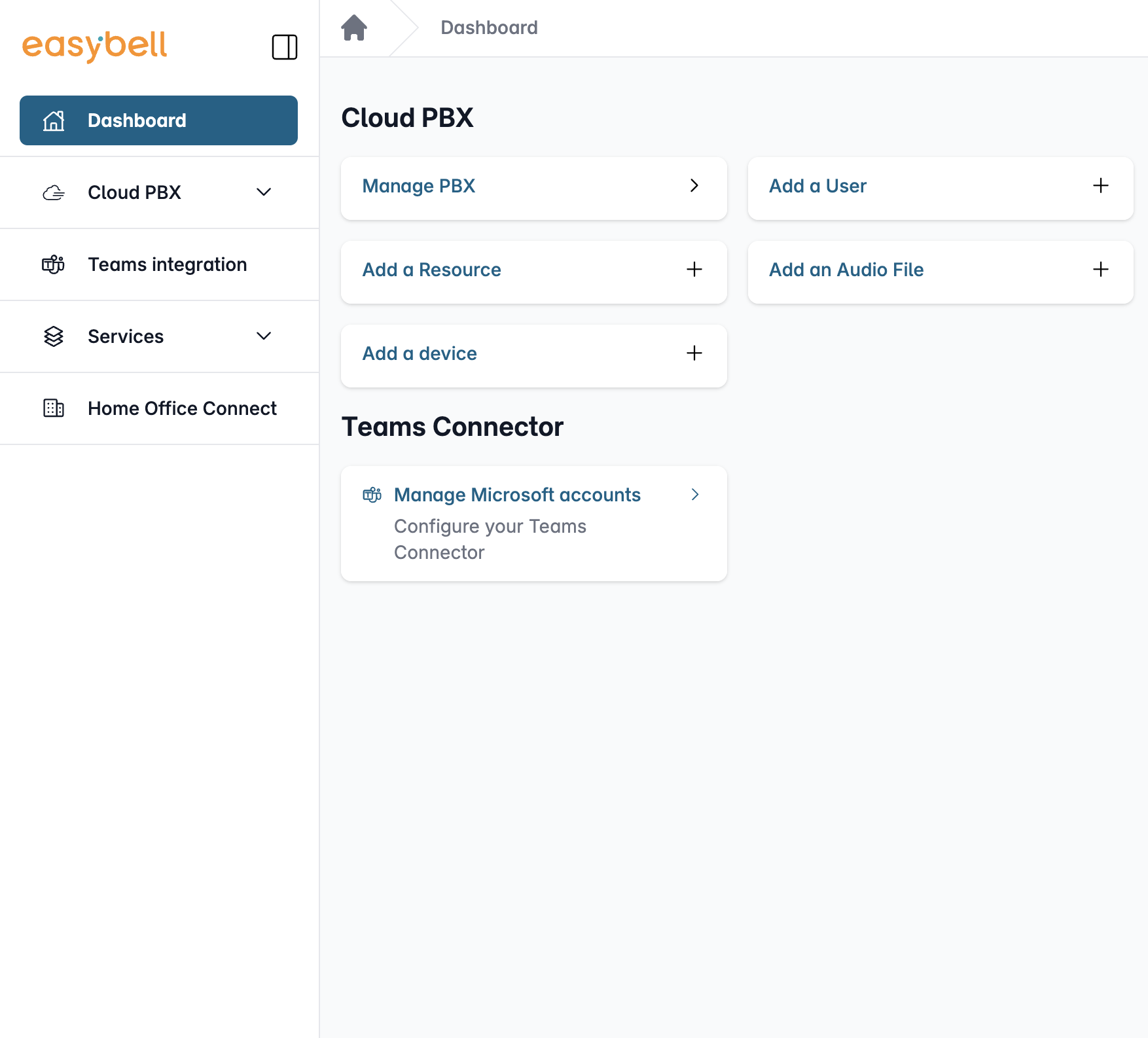
Once the password has been set, the email address and password can be used to log in to my.easybell.
You will then only have access to the pages and features that have been enabled for this account.
Manage or delete user accounts
If you want to make changes to user accounts, you must log in to my.easybell using either your customer number or an account with access to user management.
In the user management overview, you can then click “Edit” next to the accounts you want to edit.
Under “Edit User,” you can also delete accounts that are no longer needed.
We have completely redesigned our customer portal for you.
If the steps described in the instructions differ from your situation, you'll find a PDF version of the old instructions at the end of the article.