

What features does the blocklist offer?
You can create custom blocklists for any phone number. Below, you'll find instructions on how to create blocklists and learn about the various options they offer.
Blockmode vs. allowmode
In blockmode, calls are initially allowed; blocked phone numbers (or ranges) must first be added individually.
In allowmode, on the other hand, everything is initially blocked; the phone numbers (or ranges) that are to be accessible must be explicitly allowed.
Examples of how to use blockmode
- No calls to mobile phones or international numbers
- Block premium-rate numbers
- Block individual fraudulent callers
Examples of how to use allowmode
- Only connections to a specific area code or country code
- Allow calls only to and from internal company phone numbers
To customize the blocklist:
1. Open Phone Settings
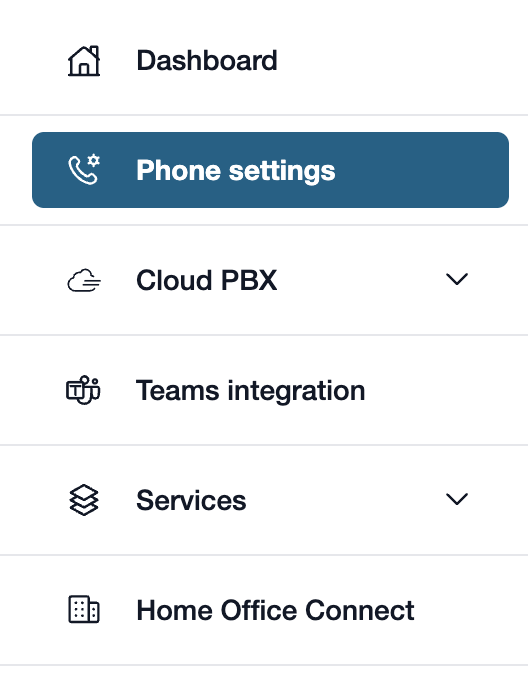
First, please go to my.easybell.
There, please click on “Phone Settings” in the left-hand menu bar.
Alternatively, you can also click on “Manage Phone Numbers” directly in the my.easybell dashboard.
2. View details
Do you have a private customer plan? If so, please click on “Private”!
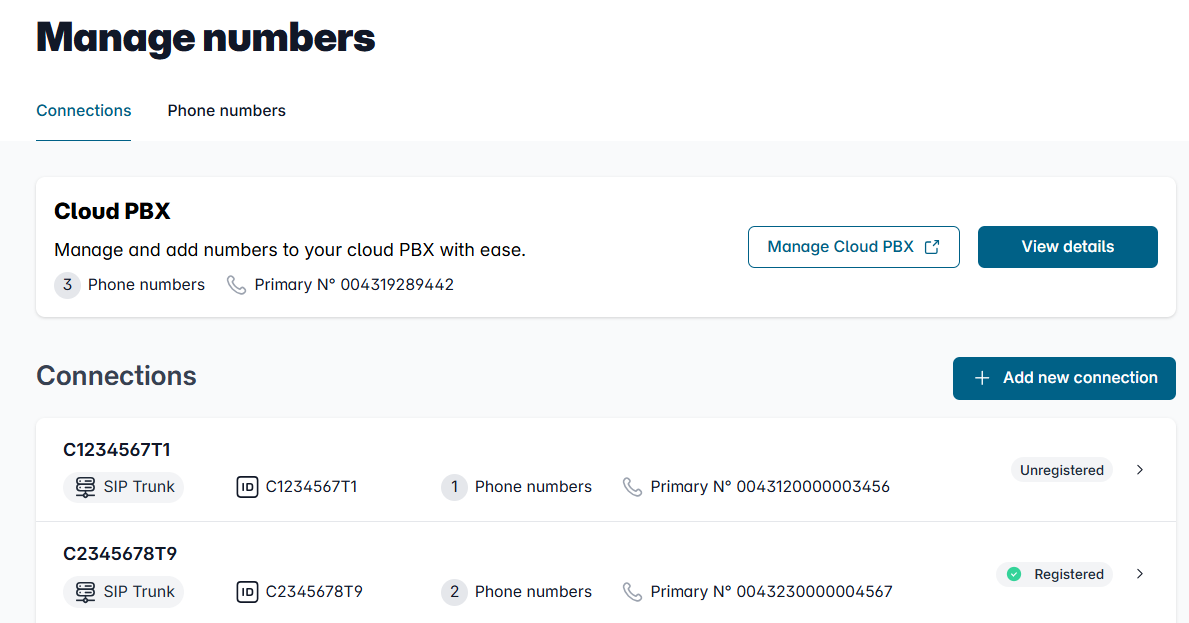
The phone settings for businesses are divided into two tabs: Connections and Phone Numbers.
In the Connection Overview, please click on the connection whose details you wish to view.
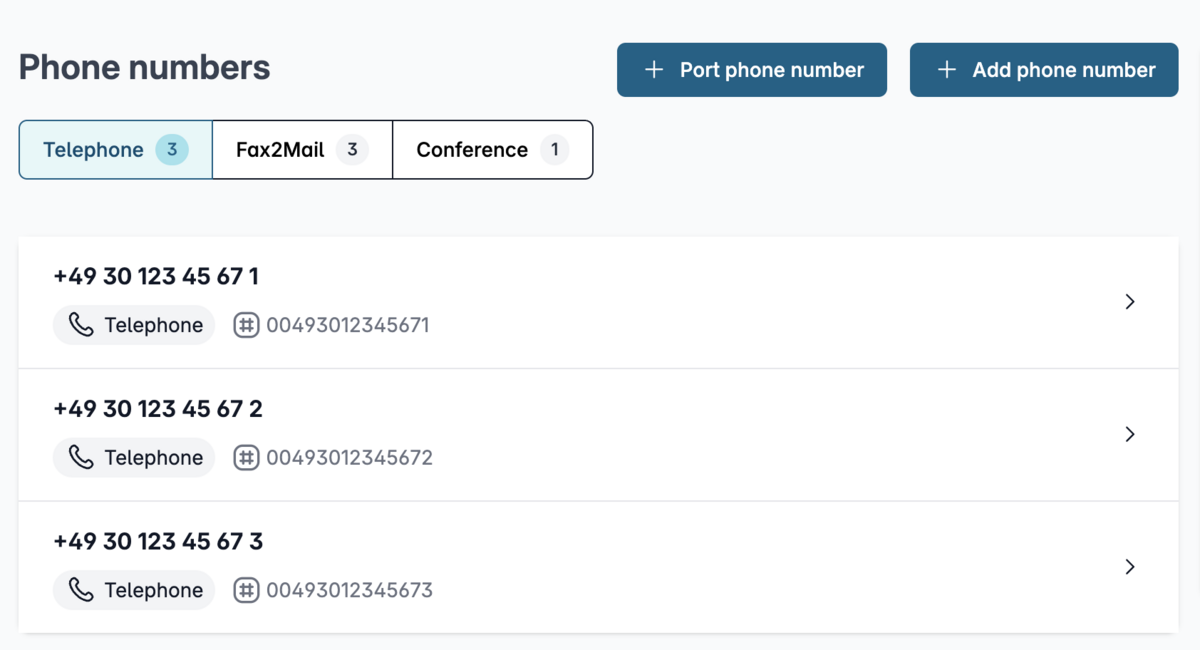
You will see an overview of your telephone numbers.
Please click on the one whose details you wish to view.
3. Open the configuration

In the details view, you will see an overview of the settings.
Please scroll to the "Configuration" section and click the "Change" button to the right of it.
4. Select the blocklist mode
Scroll to the "Blocklist/Allow List" section
You can configure the settings separately for incoming and outgoing calls. Use the tabs to switch between the lists for incoming and outgoing calls.
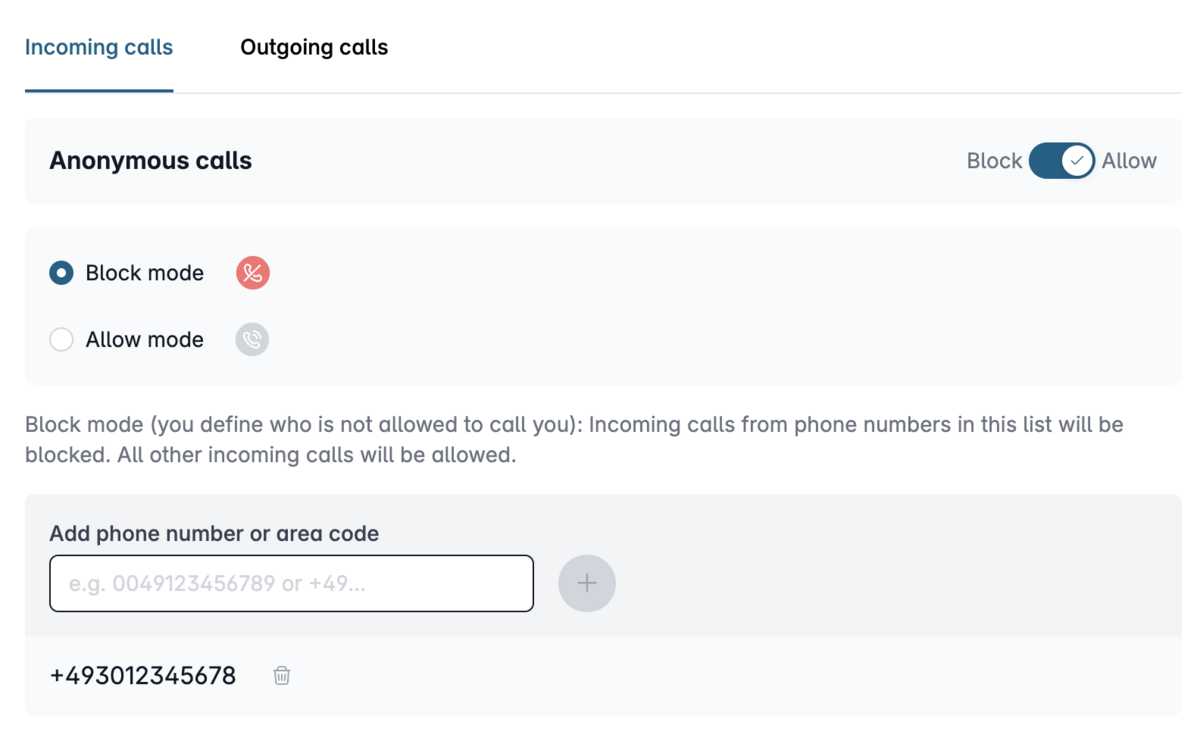
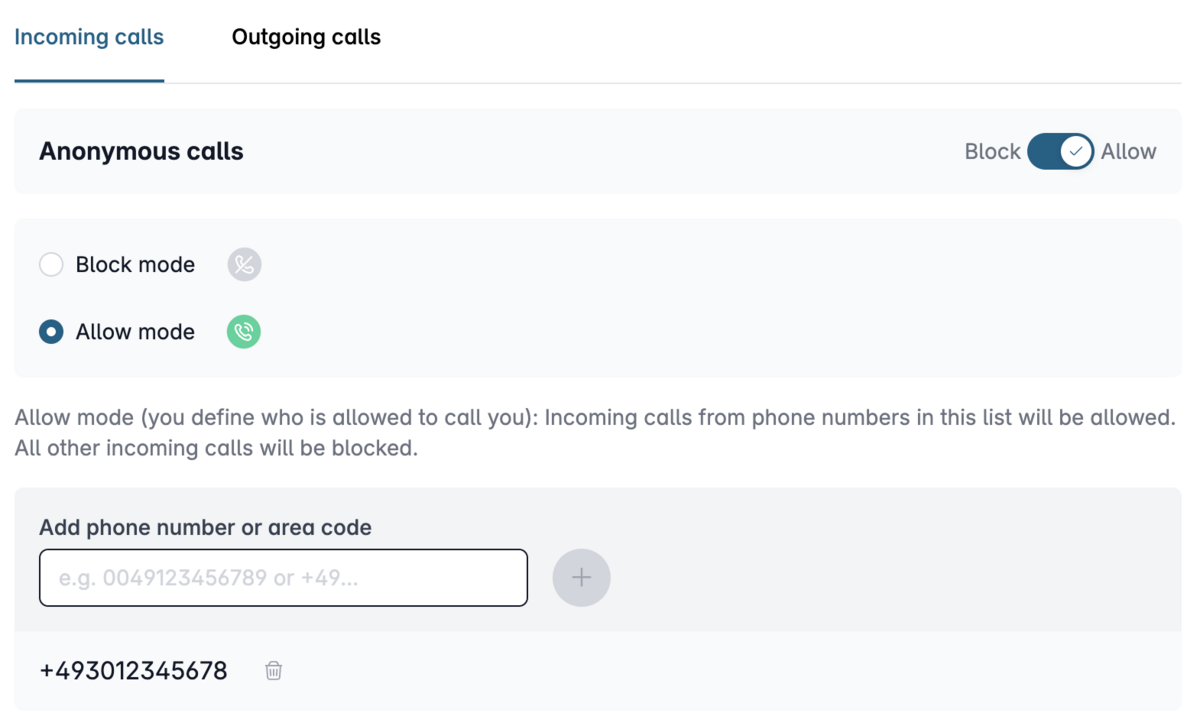
4.1. Filtering Incoming Calls
In the "Phone number/Area code" field, enter one or more numbers that you want to block or allow.
Use the "Anonymous Calls" slider to determine whether anonymous calls are generally allowed or blocked.
blockmode
Function: Specific phone numbers or ranges of numbers (e.g., including anonymous calls) will no longer be connected to the phone number.
Benefits (Example) Protect yourself from unwanted calls.
allowmode
Function: The line is generally blocked for incoming calls. Only phone numbers or area codes that you have specified can reach you.
Benefits (example): Ensure that only your closest friends and family can reach you.
4.2. Filtering Outgoing Calls
In the "Phone number/Area code" field, enter one or more numbers that you want to block or unblock.
You can also set an unblocking PIN. This allows you to call certain numbers even if the blocklist is active. To do
this, dial *80* (or *#*80* for FRITZ!Boxes) followed by your PIN before the desired phone number.
Example: If your PIN is 1234, dial *80*123403012345678 to reach the blocked phone number 03012345678.
blockmode
Function: The line is generally enabled for outgoing calls. Only specific phone numbers or area codes that you have defined cannot be called. The block can be bypassed for individual calls using a PIN.
Benefits (example): Ensure that expensive destinations, such as premium-rate numbers, are not called.
allowmode
Function: The line is generally blocked for outgoing calls. Only phone numbers or area codes you have specified can be called. The block can be bypassed for individual calls using a PIN.
Benefit (example): Ensure that your child does not call strangers.

Optional: Apply this setting to all phone numbers
If you do not wish to set permissions or restrictions individually for all your phone numbers, you will find the button “Apply to all phone numbers” at the bottom of the page.