

Advanced settings of the Easybell app
The app usually works perfectly without you having to adjust the settings. Please check in advance whether changes are really necessary, as you can also significantly restrict the app's functionality in these settings.
Note: The following instructions were created using iOS 18.5 and app version 2.5.6. There may be differences when using Android or other versions of our app. For example, the order of the menu items may differ.
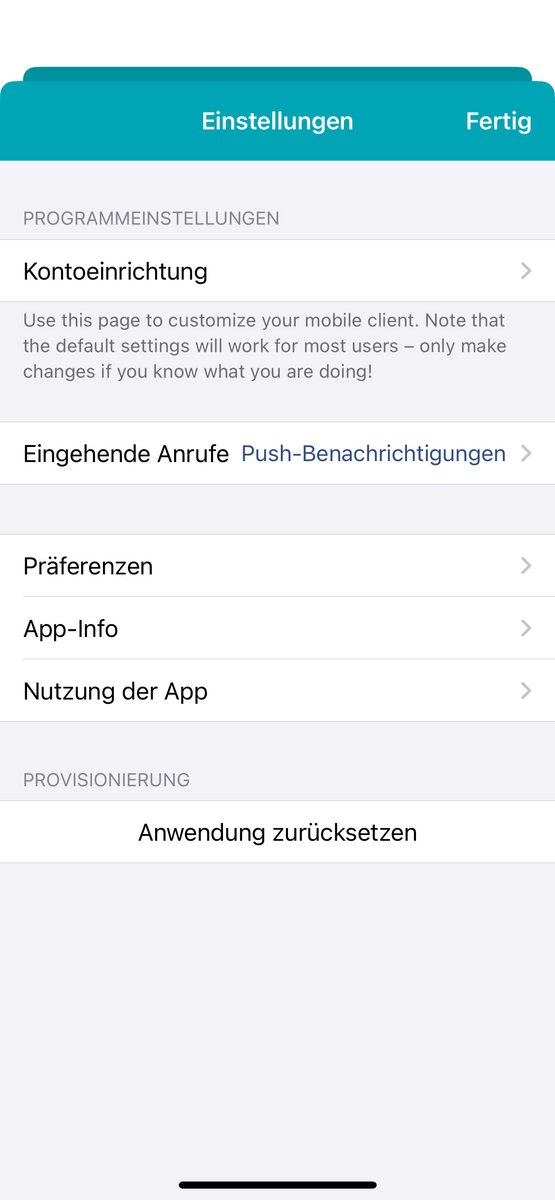
Open settings
Open the Easybell app on your mobile device and tap the gear icon in the top right corner to open the settings.
1. Account setup
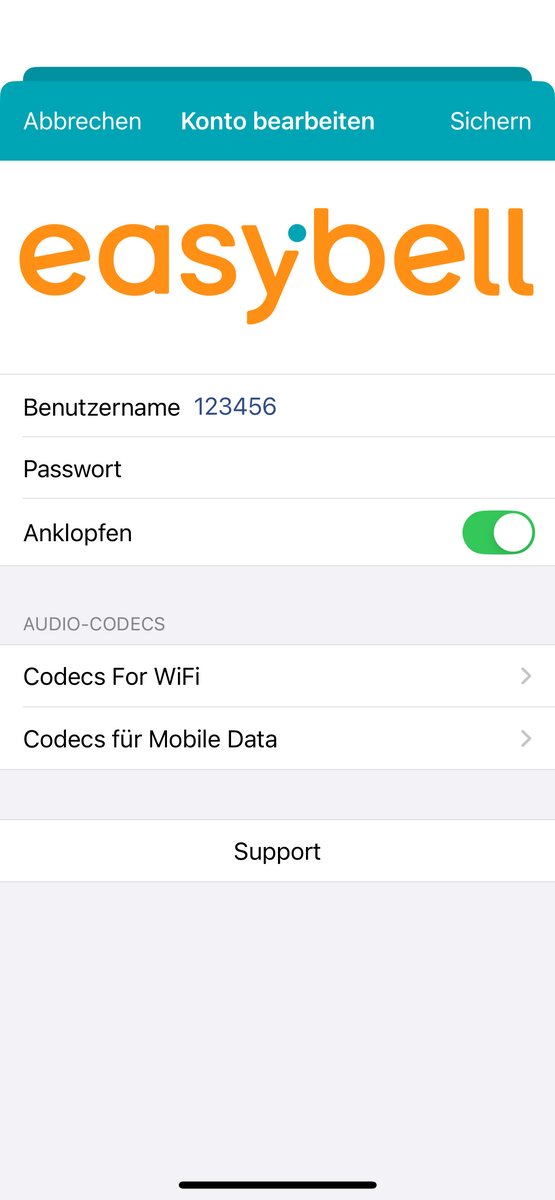
Enter your username and password here to log in again.
Call waiting
When activated, your phone will ring even if you are already on a call. If you deactivate the call waiting function, the caller will receive a "busy" signal if you are on a call at the same time.
Support
Click on "Support" to access our customer support.
2. Incoming calls
Push notifications
Select this option to receive calls even when the app is not currently in the foreground. With this setting, you will also receive calls when the screen is turned off.
Off
If you disable push notifications, you can only make calls with the VoIP to go app; you will no longer receive calls.
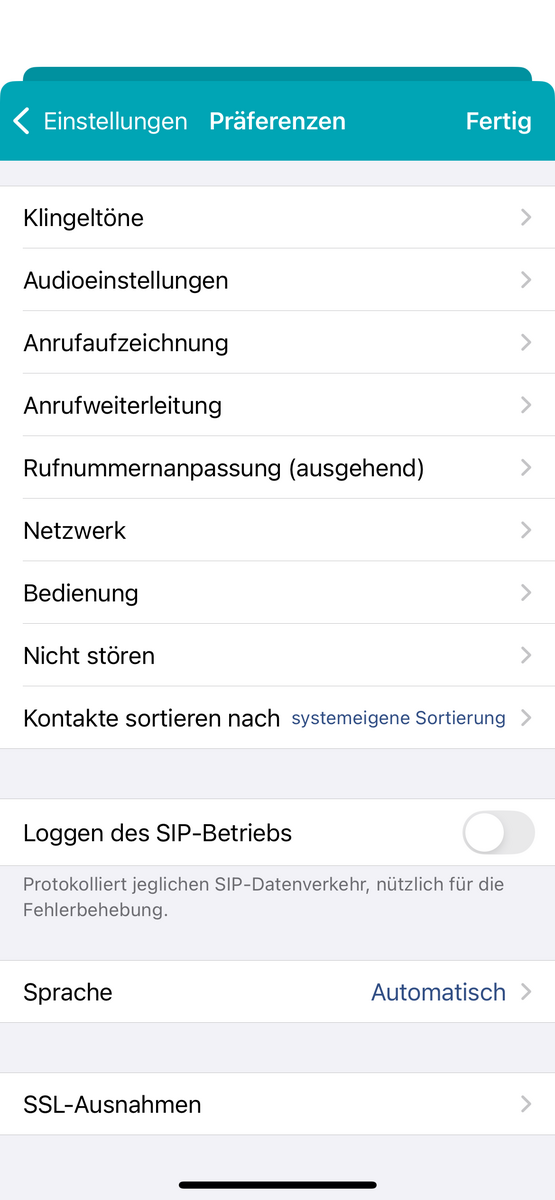
3.1 Ringtones
Here you can select an alternative ringtone.
3.2 Audio settings (sounds on Android)
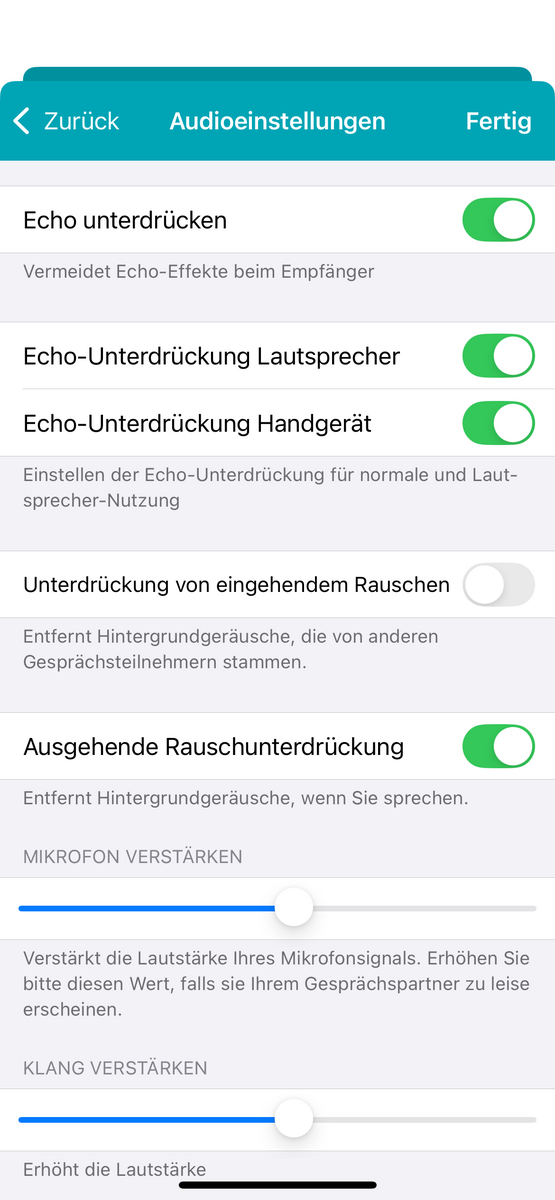
Suppress echo
Activate echo cancellation to prevent echo noises. We recommend this setting.
Echo cancellation speaker
Activate echo cancellation for speakers to prevent echo noise when using the device speaker. We recommend this setting.
Echo cancellation handset
Activate echo suppression for your handset to prevent echo noise when using the device earpiece. We recommend this setting.
Noise cancellation
Activate noise suppression to reduce background noise.
Volume adjustments
- Microphone boost: Boosts the volume of your microphone signal. Increase these values if you think you sound too quiet to the person you are talking to.
- Amplify sound: Increase the sound volume if you have trouble understanding the person you are talking to.
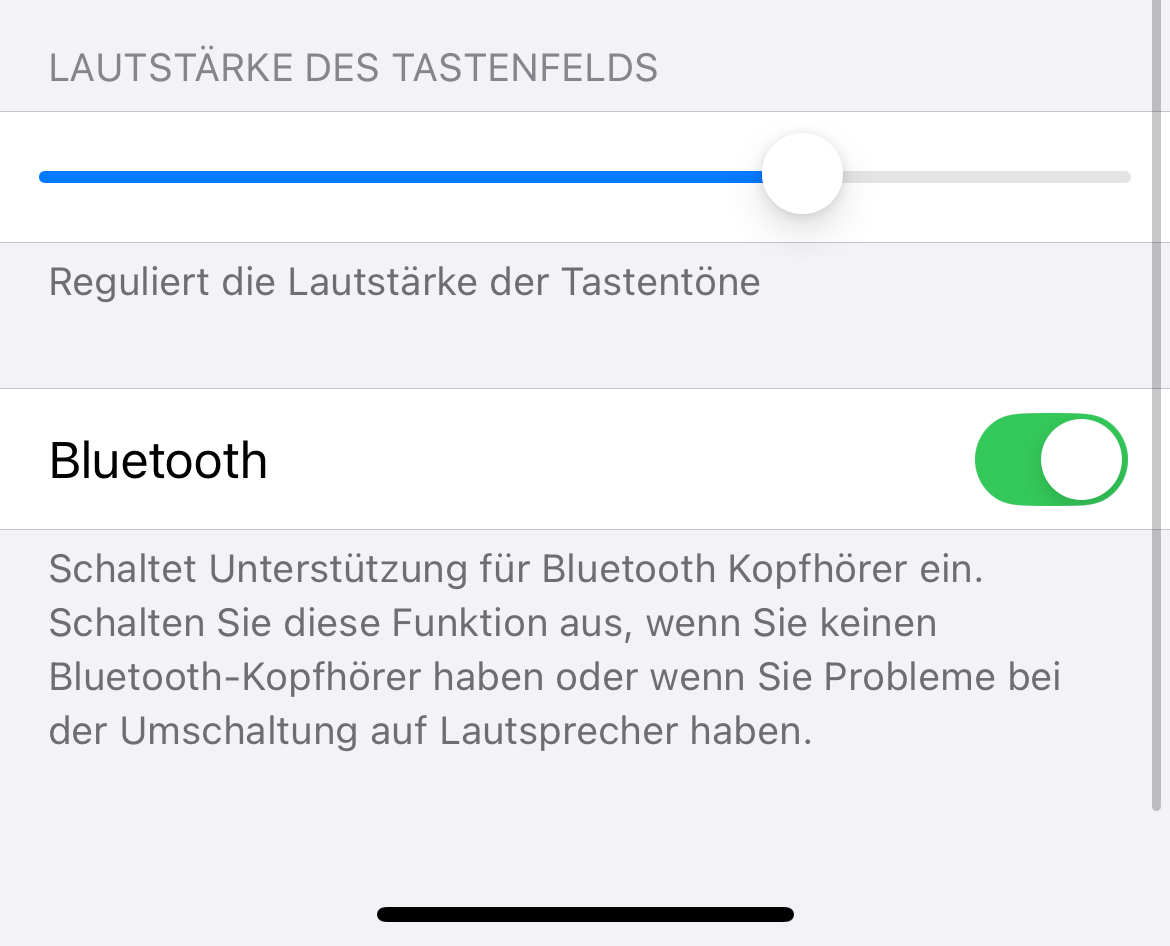
- Key tone volume: Change the volume of the key tones as desired.
Automatic volume on (on Android: Automatic speaker mode)
If you activate this function, the device's speaker will switch on immediately when you remove the device from your ear. This requires abuilt-in distance sensor in the smartphone.
Bluetooth (not available on Android)
Enables support for Bluetooth headphones. Disable this feature if you do not have Bluetooth headphones or if you experience problems when switching to the speaker. We recommend this setting.
3.3 Call recording
Record all calls
When enabled, all calls you make will be automatically recorded.
Multi-channel
Select this option if you want to create a separate audio track for each participant in the WAV file to be recorded. Turn this option off to save storage space.
Output file format
You can choose from three formats:
8 kHz (Wav nano-law), 16 kHz (WAV PMC16), and 48 kHz (Ogg Opus). Depending on your selection, the storage requirements for the recordings will increase.
Delete after
Duration after which conversations are automatically deleted.
Recording Signal
Plays a beep every 15 seconds to alert the other party that the conversation is being recorded.
If you disable this, you will be asked to agree to a disclaimer in the app.
Here you can enter an email address to which you can then send the recorded conversation as a WAV file.
Upload URL
URL for uploading the recorded .wav files. The app uses PUT requests with the respective recording in the body of the request.
3.4 Call forwarding
To set up automatic call forwarding correctly, please use our customer portal or our OfficeDesk. There you can set up call forwarding for your phone number(s).
A
Activates automatic call forwarding. To do this, enter the desired phone number.
Forward call
This allows you to decide spontaneously when an incoming call comes in whether and to which phone number you want to forward the caller.
3.5 Number customization
Phone number adjustments affect all selected phone numbers!
Use at your own risk.
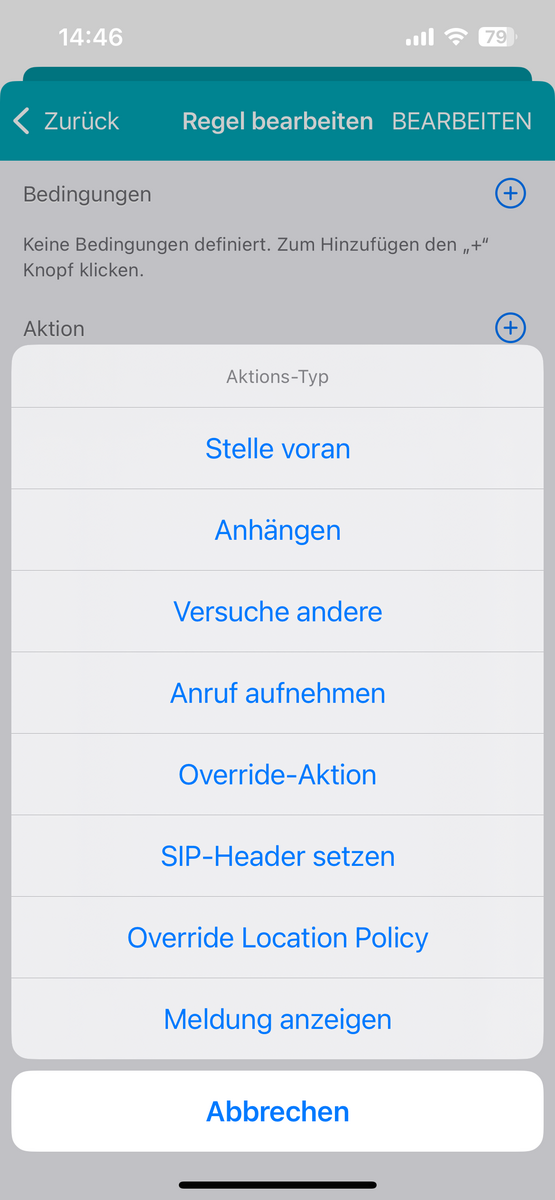
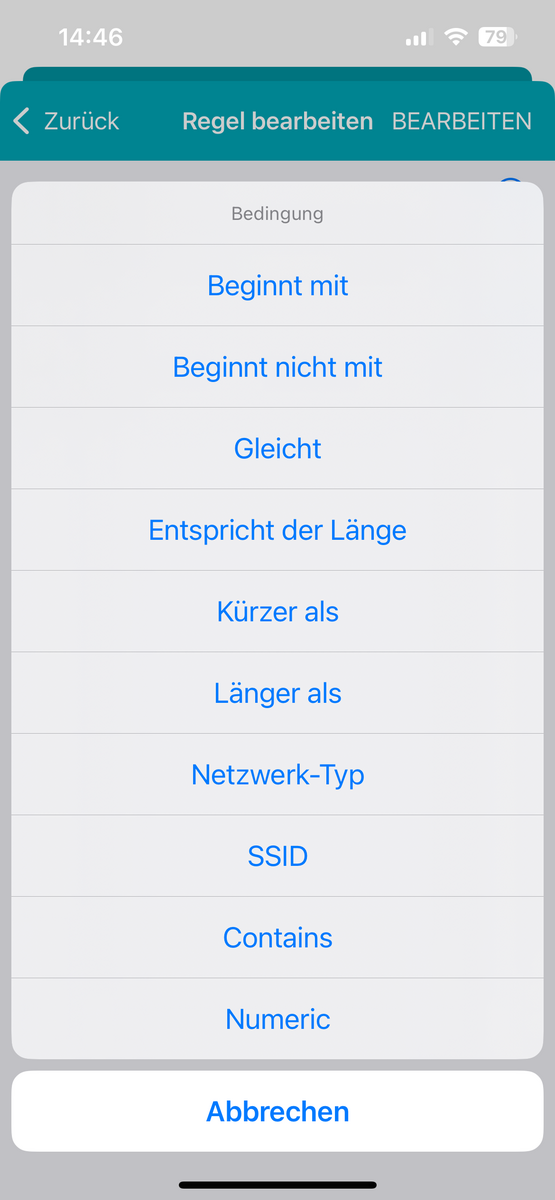
Create rules based on the properties of the dialed phone number, e.g., "Starts with" or "Matches length." If one of the set conditions applies, an action such as "Prepend" or "Answer call" can be selected.
3.6 Network
Approved SSIDs and Unapproved SSIDs
You can restrict the app to only use Wi-Fi networks with SSIDs from your list. This does not affect the 3G/cellular connection.
For iOS version 13 and higher, access to location services is required to determine the current WiFi SSID. If you have set up approved or unapproved SSIDs, the app will prompt you to allow access to location services for proper detection.
Network priorities for RTP
"Prefer mobile data" sends the RTP audio data via your mobile data connection, even if WiFi is available. This enables a stable phone connection in case of a weak WiFi connection. Please note that all data will then be billed via your mobile phone contract.
Network change
In the event of a possible network change during a phone call, you must specify whether the new network or the previous one should be used. The default setting is to only switch networks "if necessary" – e.g., if the mobile data network was used at the beginning of the call, but a previously connected WiFi network became available during the call. The third option is to "always" switch networks, if possible.
If you are using an Android device, you will also find the following settings options in this area:
Keep mobile network active
When enabled, the mobile network will continue to be used even when the smartphone is connected to WiFi. This can help in cases of unstable or inconsistent WiFi connections.
Use RTP layer (obsolete)
This activates the use of the RTP layer. We still support this, but it is already obsolete.
3.7 Operation
Headset control
Activates call control via the remote control button on your headset. When activated, music playback will not resume after the phone call. A single click answers an incoming call or puts an existing call on hold. A double click rejects a call or ends an existing call.
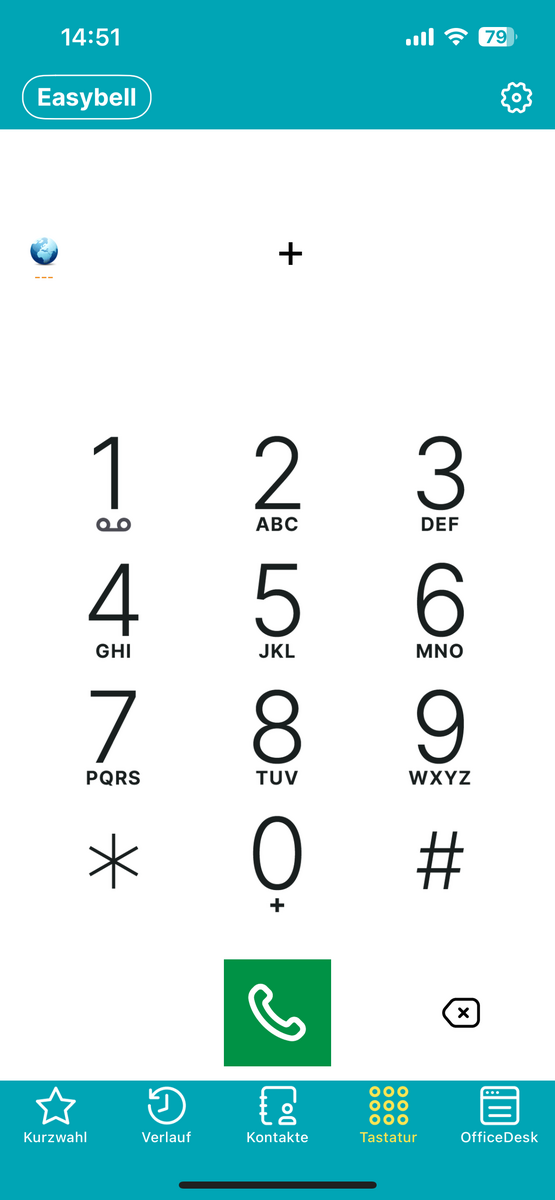
Show "Globe" button
Please select to display the "Globe" button. If the "+" button is selected, a selection of country codes will appear after clicking on the globe.
For GSM calls: Edge Voice service
Behavior for incoming GSM calls during a landline call. You can choose between "End call," "Hold call" (default), and "Play message, hold call."
If you are using the app on Android, you will find this setting in the preferences under "Control." There you have the option, among other things, to deactivate the default call integration of Android. You can then configure the call behavior for GSM calls in the same way.
However, disabling call integration may cause you to lose certain features, such as the ability to use Bluetooth headsets during calls.
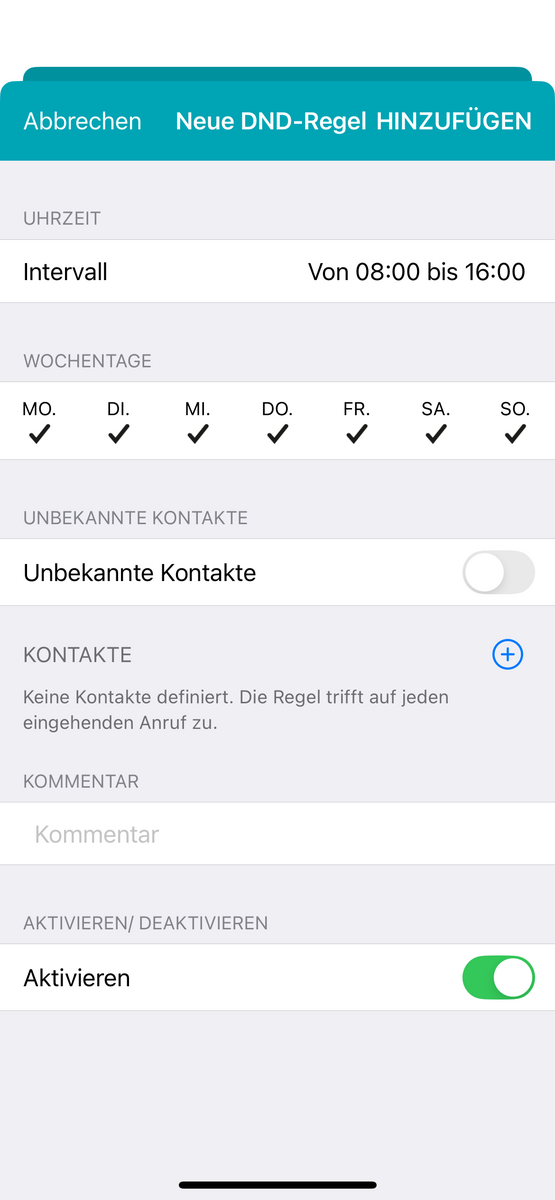
3.8 Do Not Disturb
Here you can add DND (Do Not Disturb) rules if you do not want to receive any incoming calls during this period. The rules can be created for time intervals, weekdays, and specific contacts. You can also add a comment to a rule and turn it on and off individually.
3.9 Sort contacts by
You can choose from three sorting sequences:
- System default (iOS only): This sorts your contacts according to the default settings on your device.
- By first name: Sorts your contacts alphabetically by first name
- By last name: Sorts your contacts alphabetically by last name
3.10 Logging the SIP area
Recording SIP operations is useful if you notice any connection or other issues within the app. In support cases, it may be worthwhile to activate logging and send the generated file directly to Easybell Support when reporting the malfunction; this enables faster and more effective processing. If SIP logging is activated, you can find it under Settings: SIP Log.
3.11 Language
Here you can select one of the languages offered. The language is set automatically by default, i.e., it is identical to the system-wide language setting of your smartphone.
The app must be restarted for the changes to take effect.
3.12 SSL exceptions
Exceptions for SSL certificates are added here if they were added during a failed certificate verification. This can happen if the certificate has expired or if the proxy uses a self-signed certificate.
4. App info
Here you will find information about the version and build number of the app, as well as the device identification.
5. Use of the app
This section contains information about your use of the app. You can view call times for the current and previous month, as well as the total call time in minutes. You will also find information about the number of individual callers here. Clicking "Reset" will reset all statistical data.
6. Reset application
This is particularly relevant if, for example, you want to log in to the app with a new phone number or delete the app. If you delete the app without resetting the application, you may encounter problems when logging in again with the same phone number on a different device.