

Set up authentication via FQDN (domain) for SIP trunks
What is an FQDN?
A Fully Qualified Domain Name (FQDN) is a complete and globally unique domain name, such as sip.mycompany.com. It replaces the IP address in authentication and makes your configuration much more flexible. Especially when public IP addresses change (for example in cloud environments or with dynamic connections), authentication remains stable as long as the FQDN points to the correct IP address in the DNS.
1. Determine the SIP URI
Please first obtain the SIP URI from your VoIP or AI service provider. You will need the SIP URI to set up the FQDN connection in the cloud-based telephone system. The necessary steps may vary depending on the provider.
We will be expanding our range of guides.
Guide: Using AI services from fonia.ai with Easybell
2. Access Telephone line settings
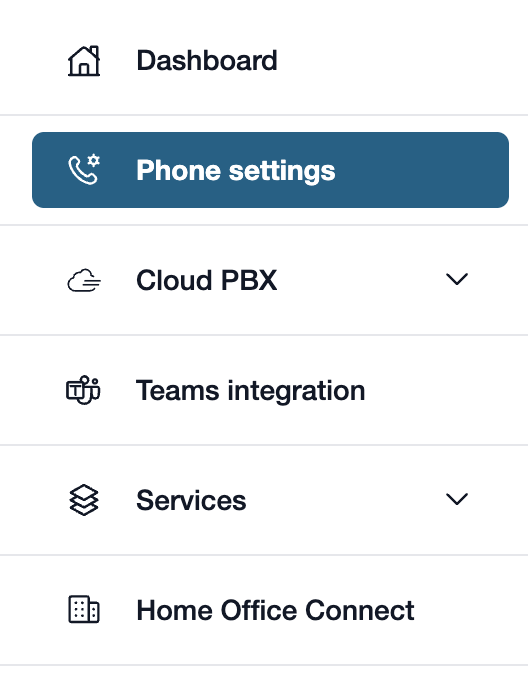
First, please go to my.easybell.
There, please click on “Telephone line” in the left-hand menu bar.
Alternatively, you can also click on “Manage Phone Numbers” directly in the my.easybell dashboard.
3. Open connection details
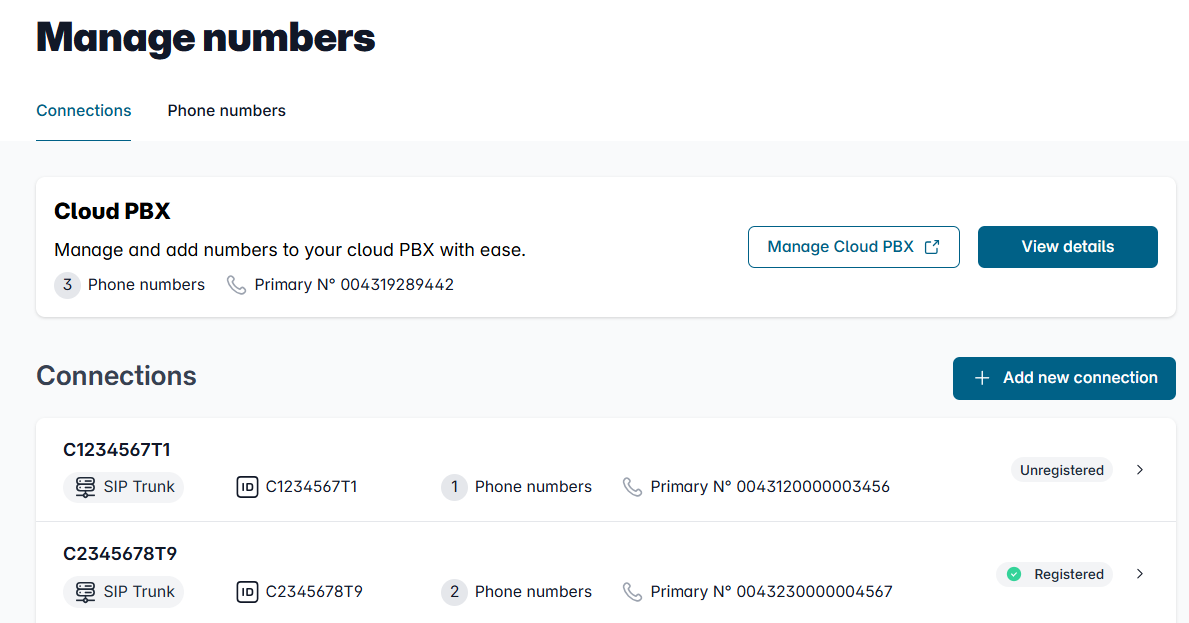
In the Overview of connections, please click on the connection whose settings you want to adjust.
4. Access configuration

In the details view, you will see an overview of the settings.
Please scroll to the "Configuration" section and click the "Change" button to the right of it.
5. set up authentication via FQDN
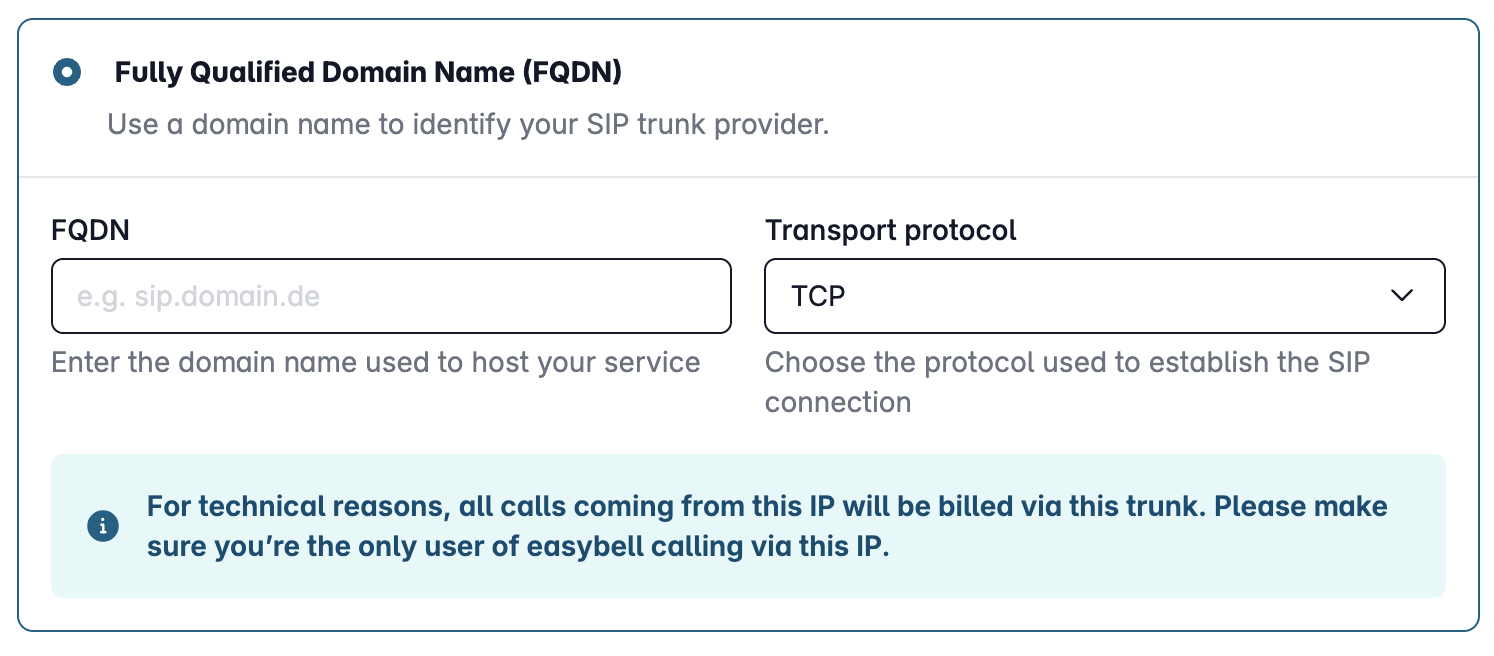
You will now be taken to the settings for Trusted IP.
To activate authentication via FQDN, go to Incoming and select the FQDN domain option under Authentication via.
Now enter your domain name, e.g. sip.company.com and save your settings
Recommendations for the configuration
If you operate your Cloud PBX based on the Microsoft Azure Cloud, it is best to use TCP or TLS as the transport protocol. For the "Incoming Number Signaling" setting, we also recommend using the E.164 format with a leading plus sign, for example +49301234567.
If domain use is not possible, you can alternatively enter the following IP networks:
- 195.185.187.0/27, 195.52.221.128/27 (UDP/TCP)
- 195.185.187.0/27, 212.172.204.95/32, 212.172.58.207/32 (TLS)
Valid input formats
You should observe a few rules when entering your domain:
| Error message | Cause of error |
|---|---|
| "Please enter a domain." | The domain must not be empty. |
| "Invalid entry. Only use valid domain characters." | Only use valid domain characters (no spaces, special characters or umlauts) |
| "The domain must not be longer than 255 characters." | The domain must not be longer than 255 characters. |
| "The domain could not be resolved. Please check your entry." | If your entry cannot be resolved, you will receive an additional error message. |
Switch back to IP authentication
If you want to switch back to authentication via IP addresses at a later date, you can easily change the method in the customer portal. The field for the domain is automatically cleared and is ready for a new configuration.
We have completely redesigned our customer portal for you.
If the steps described in the instructions differ from your situation, you'll find a PDF version of the old instructions at the end of the article.